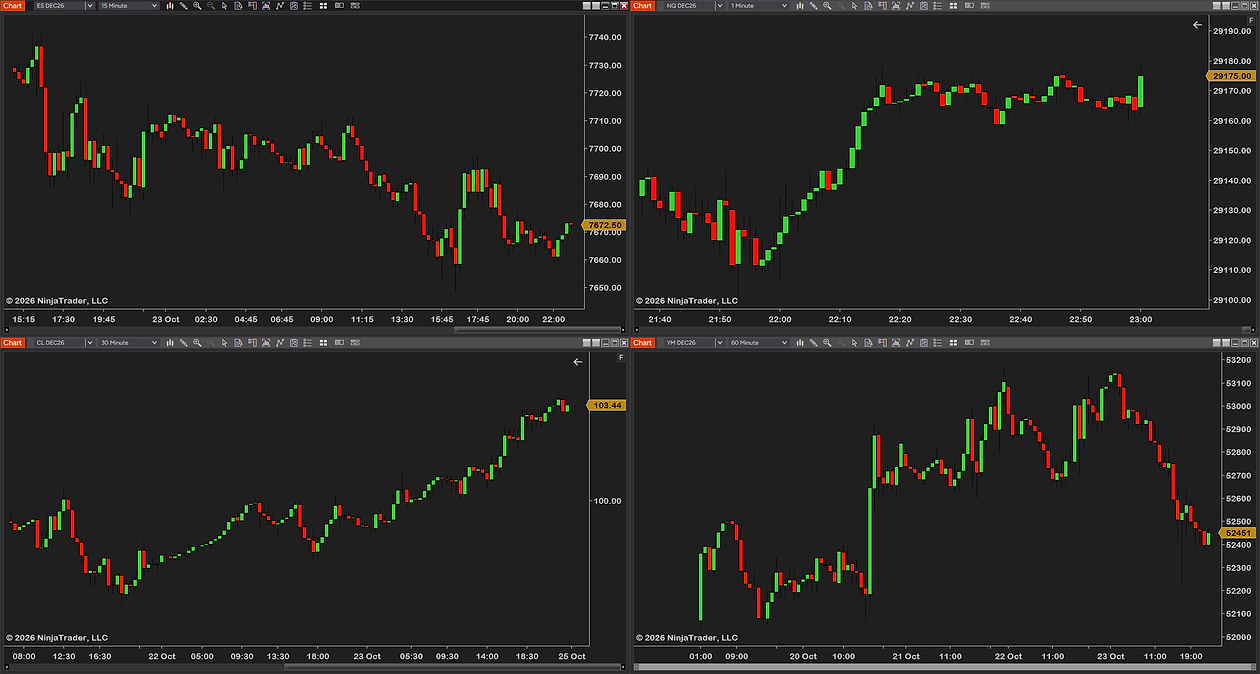
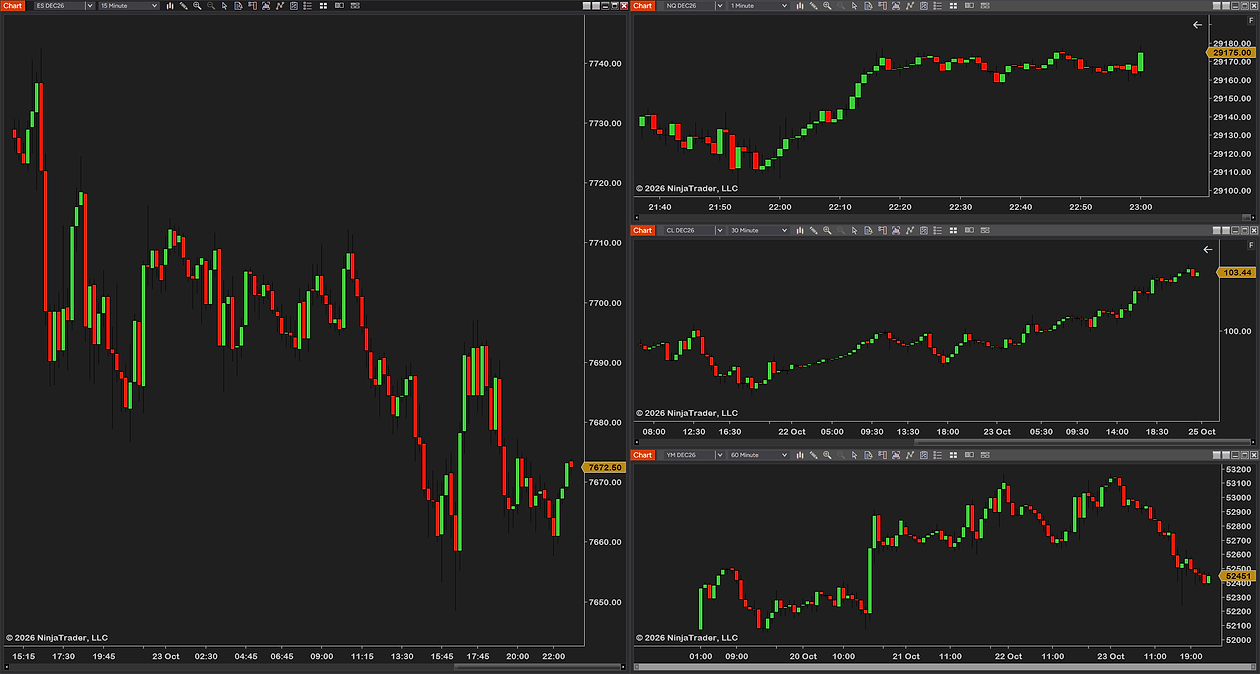
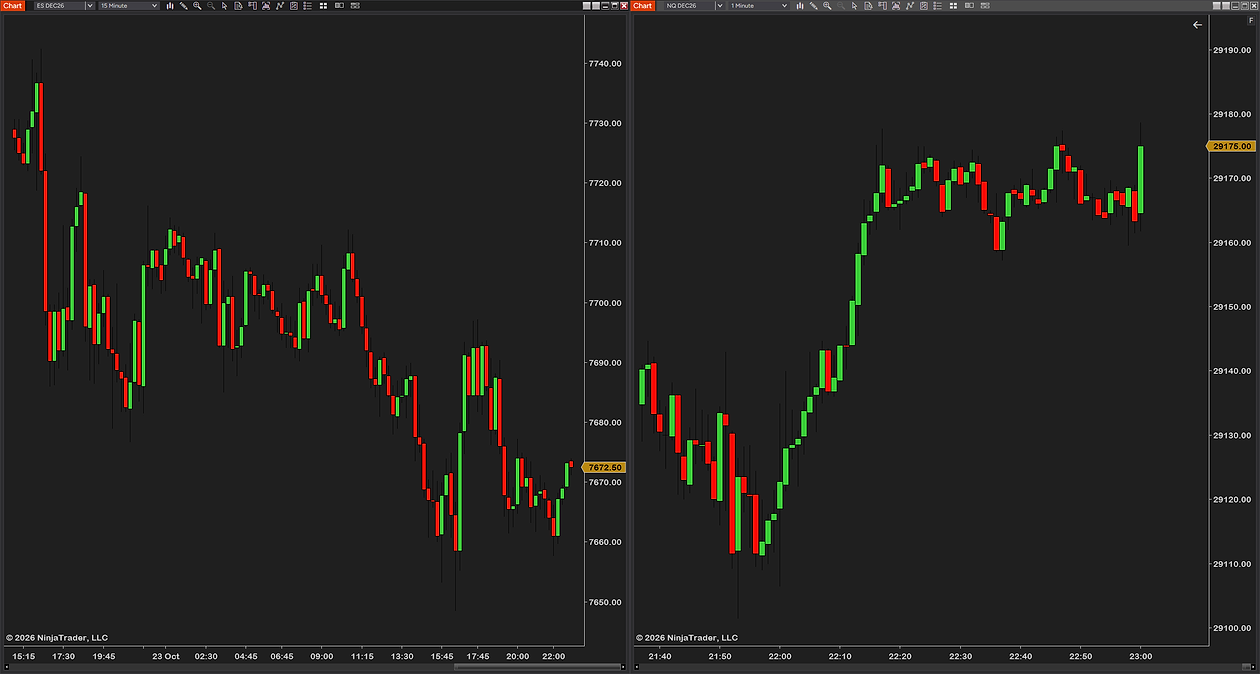
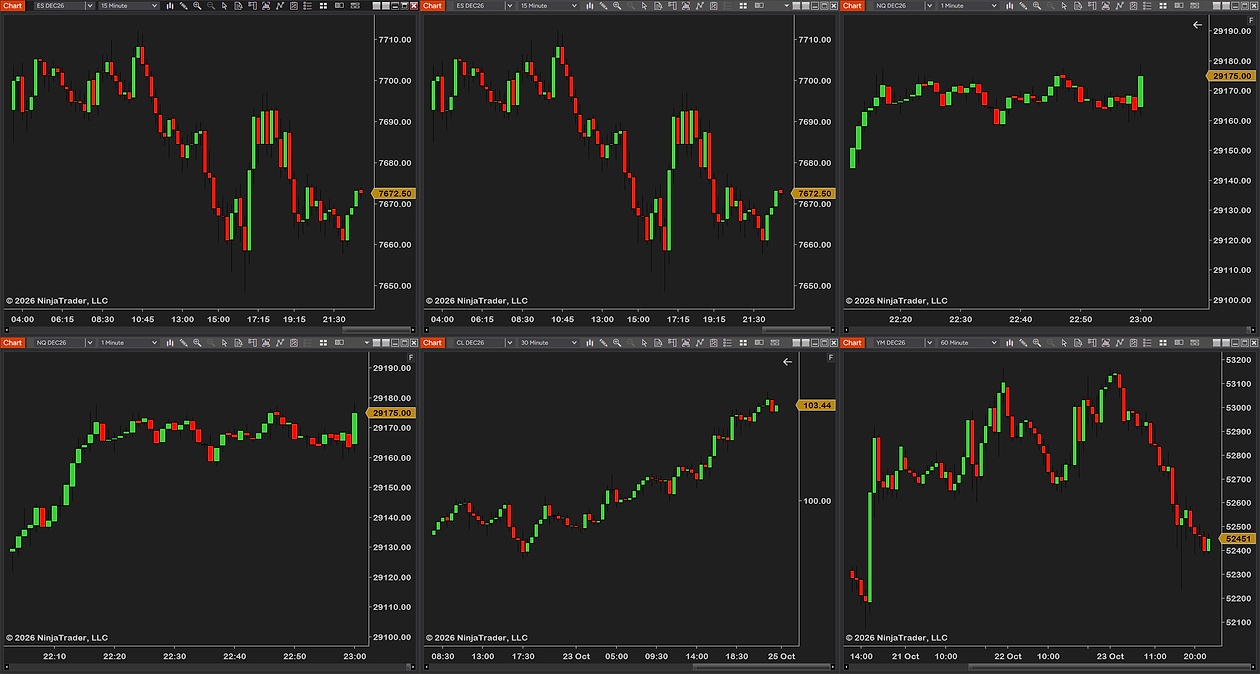
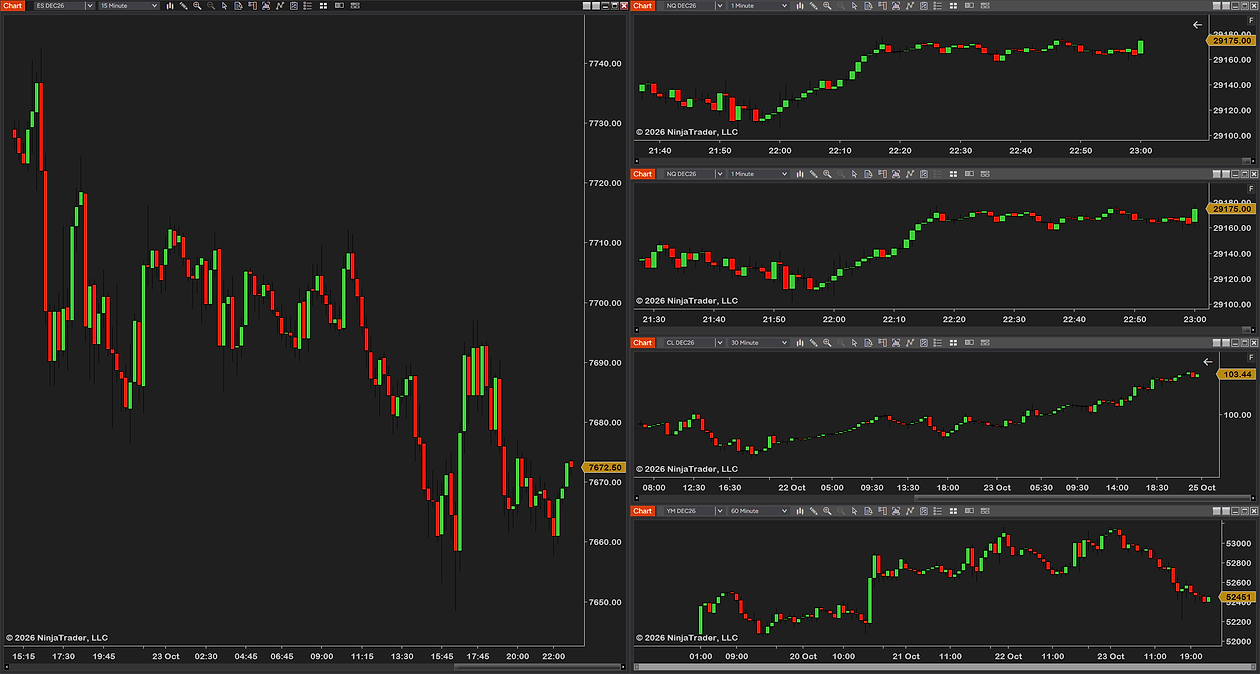
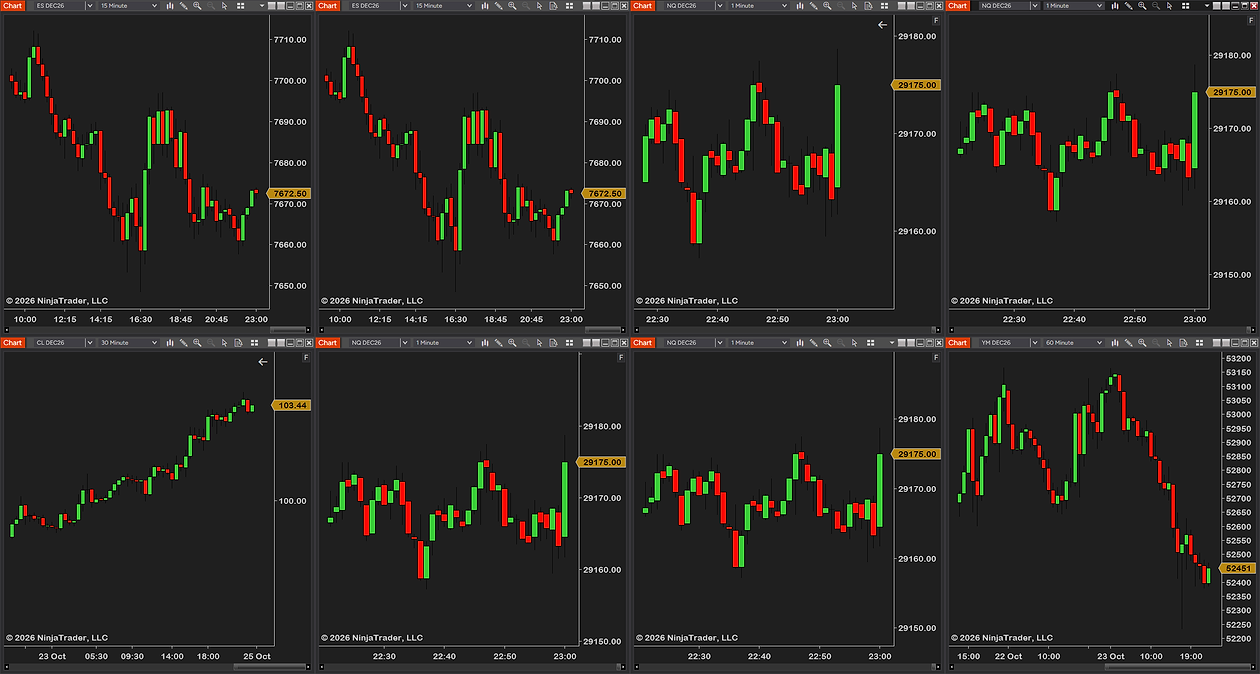
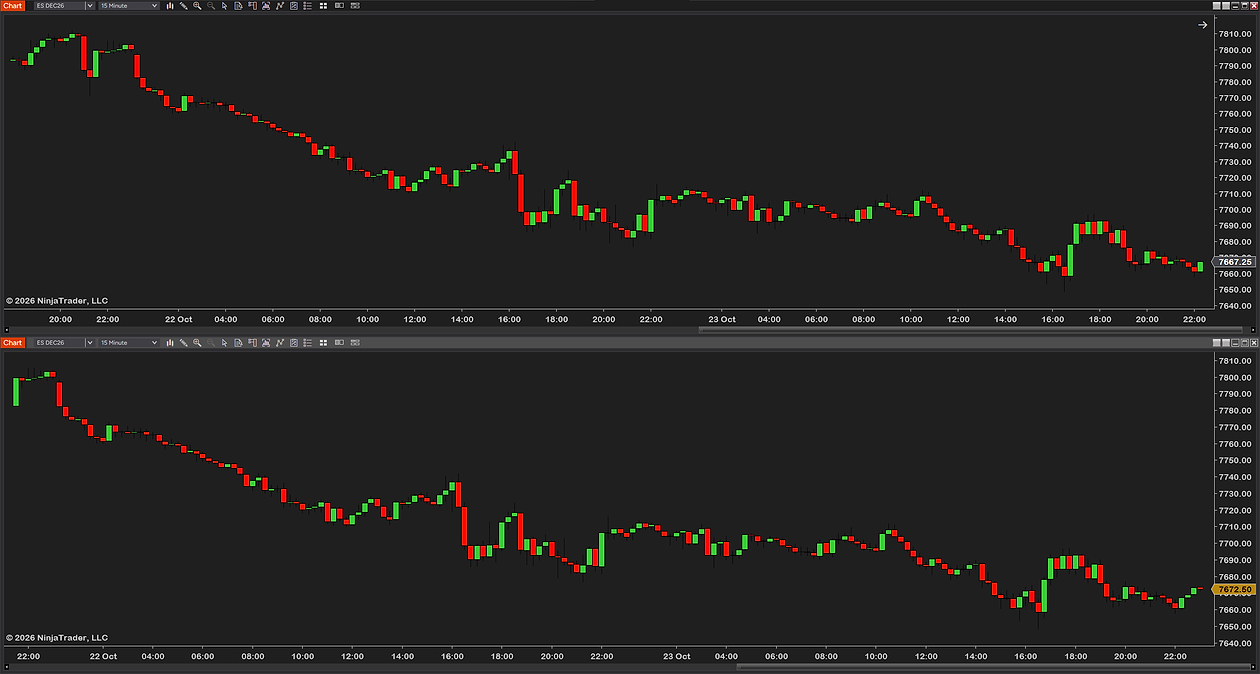
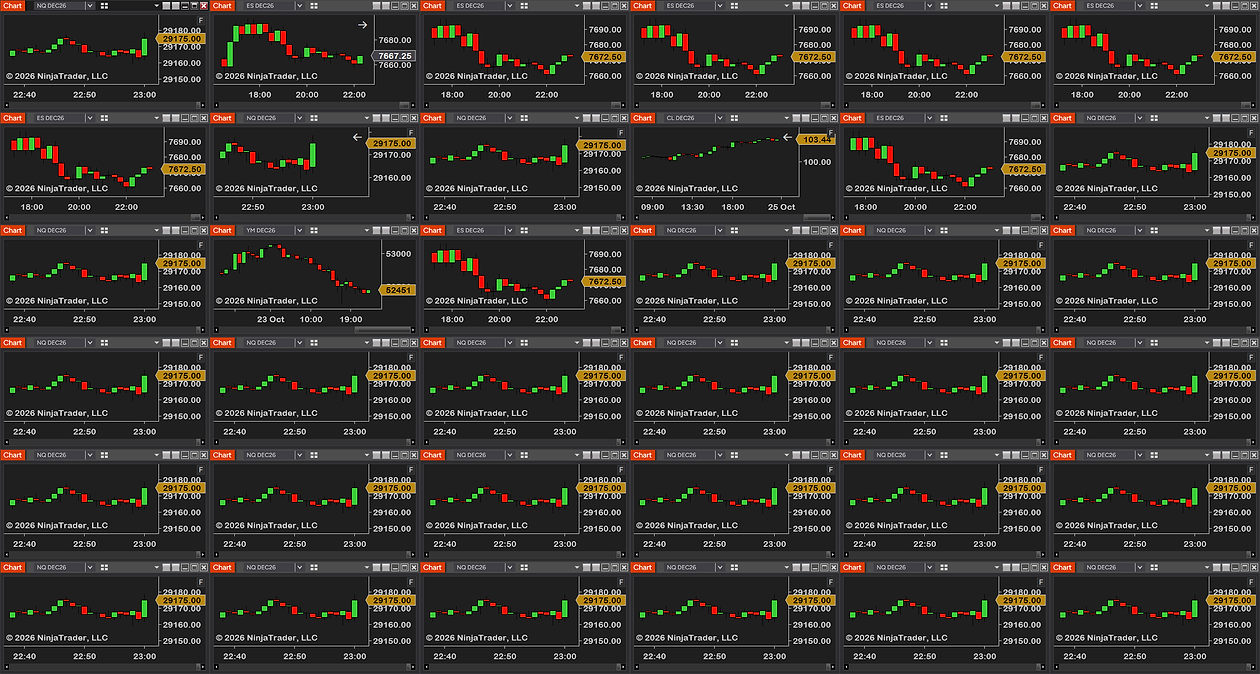
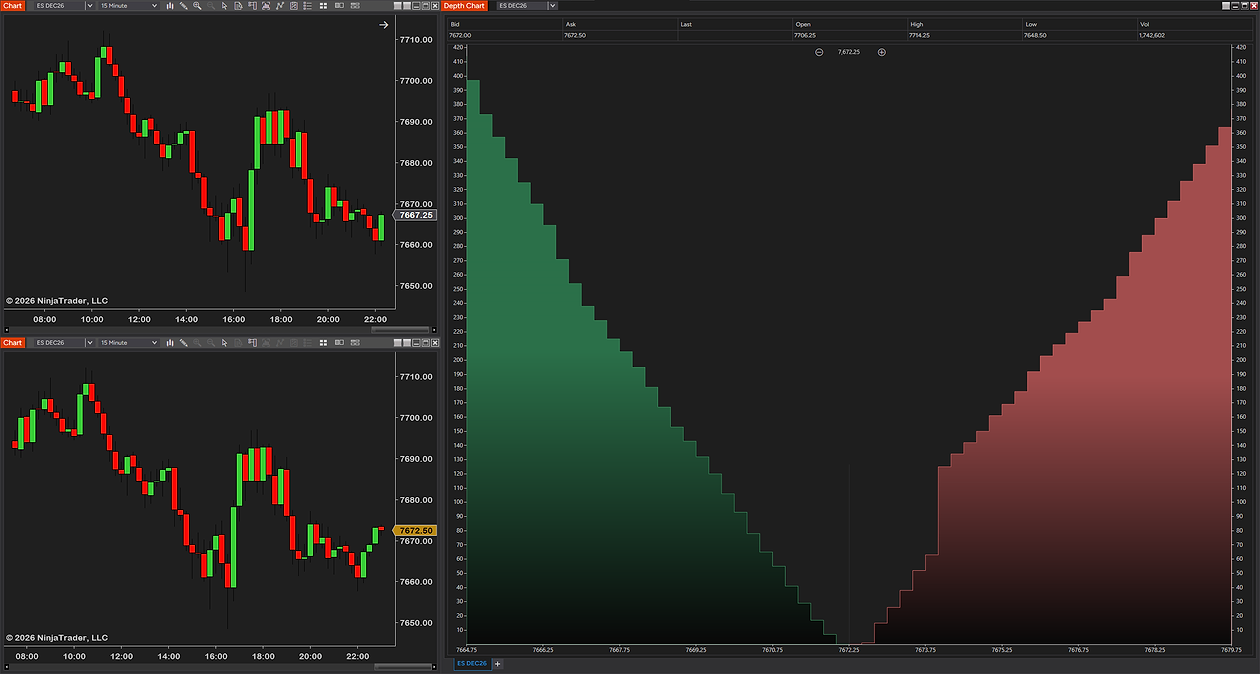
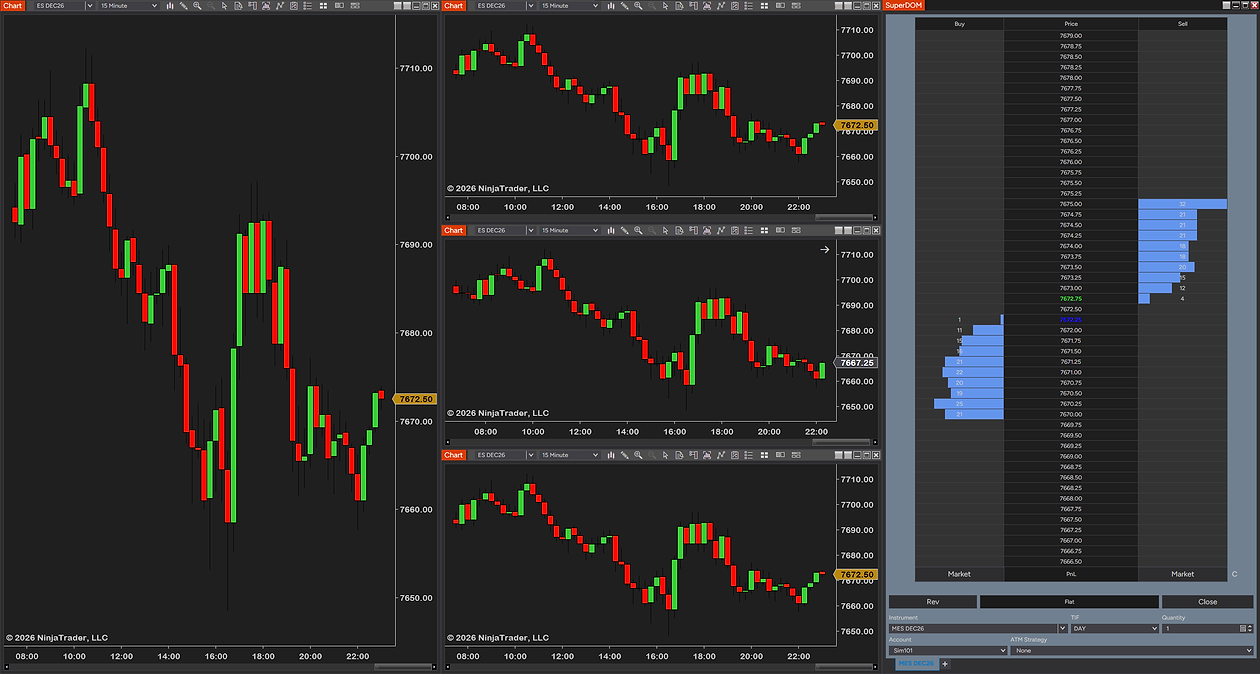
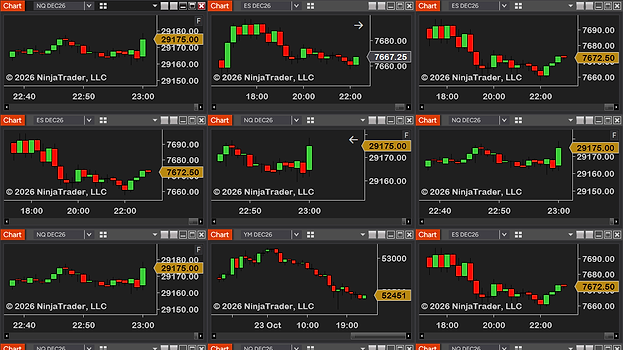
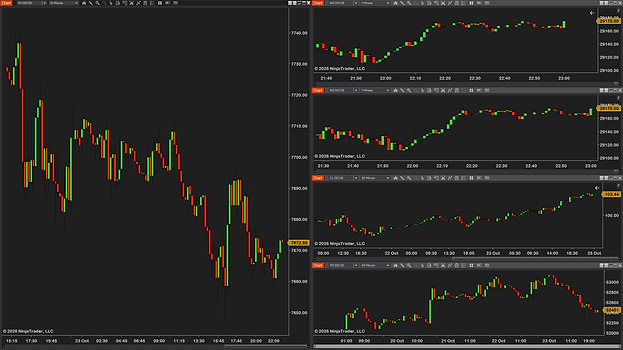
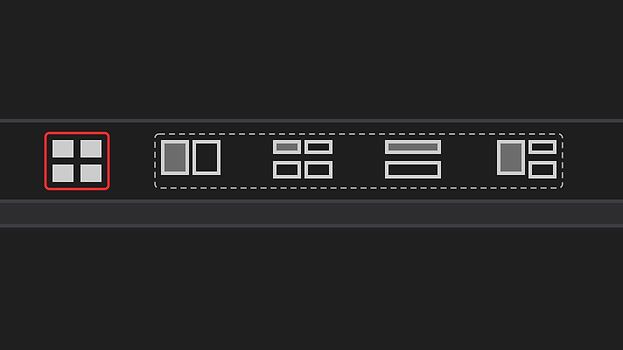
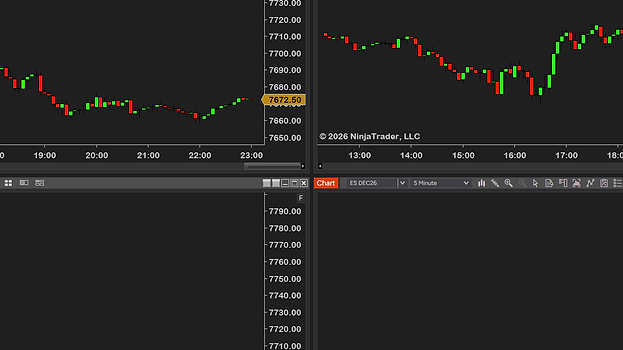
One button on every chart, an editor under New in the Control Center, and the six things they add up to. The names in bold are the names in the add-on.
One button on every chart’s toolbar
The Multi Chart Layout button opens a menu for the screen that chart is on: up to four big pictures of layouts, a More layouts list, and Undo, Original, My saved look and Save this look (Save again once one is saved). Each picture says whether it fits the charts on that screen, and one click arranges them. Up to four layouts can be pinned as their own one-click buttons next to it; a new install starts with 2 × 1 and 2 × 2 pinned.
Ready-made layouts, or build your own
The editor’s Ready-made tab groups layouts by how many charts you run, from 2 charts to 12–16, with groups for ultrawide and upright screens. Build your own makes a Grid of 1 to 6 Columns and Rows, or 1 main chart + others: 1 to 6 Other charts, the Main chart on the left, right, top or bottom, and the Main chart’s share of the width or height from 50 to 80%. Gap between charts runs from 0 to 8 pixels. Your list holds up to 12 layouts.
Which chart goes in the first place
The chart I click from, the default, gives the first place, the big one when a layout has a main chart, to the chart whose button you pressed. Keep their order leaves the top-left chart first. Either way, a chart already in a place keeps it (pressing the layout from another chart swaps just that chart and the first one), and the small arrows on a picture open a map where you choose which chart goes where; the layout remembers that choice, also after you switch a chart’s instrument or bar size.
The menu, your way
Big pictures at the top of the menu shows the layouts Popular for each screen, chosen for the screen’s shape, or My first 4 layouts from your own list. Order of “More layouts” in the menu puts the Best fit first, the layouts with exactly one place per chart on top, or keeps My own order. Pinned layouts stay at the top of the list.
Keep part of a screen free
For a DOM or Time & Sales: in Keep part of a screen free, click the edge of a screen in the drawing of your desk, then set the Strip width. 0% uses the whole screen for layouts, 100% keeps layouts off that screen. Each screen keeps its own strip, and a layout never moves a chart that sits in it.
A note after each click
With Always show what happened on, a short note under the button says what each click did. Off, the default, a note shows only when something went wrong: a chart was busy or closed, could not take its size, or a mouse button was held; Save this look always confirms. More (rarely needed) can forget every chosen place in one go and show the first-use tip again.