What Is an ATM Strategy in NinjaTrader 8? Settings, Traps and Fixes
An ATM strategy is the thing that puts a stop loss and a profit target behind your entry without you placing them. Here is every setting in NinjaTrader’s own words, the two that catch people out — both found the hard way, on real fills — and what to check when yours stops working.
What an ATM strategy is
The meaning is in the name: Advanced Trade Management. It is NinjaTrader’s built-in way of attaching exits to an entry automatically.
You pick an ATM template, place your entry, and when that entry fills NinjaTrader immediately submits the exit orders behind it — a stop loss and a profit target. You do not type them, and there is no window where the position sits unprotected because you were still clicking.
That is the whole idea, and it is why most futures traders end up using one. What follows is the part that tends to bite people afterwards.
Where templates are created and saved
Templates are made in the order-entry windows, not in a settings menu. Open Chart Trader on a chart, or the SuperDOM, and the ATM panel is there with its Strategy Parameters. Set the stop and target distances, then Save as Template gives it a name, and from then on it is in the ATM Strategy dropdown wherever you trade.
That dropdown also carries two entries that are not templates. <None> means no bracket at all — your entry goes in naked. Custom means the parameters you have typed into the panel right now, used once, without saving them — a custom ATM strategy is a one-off, not a template. If you see one of those two selected when you expected your template, that is often the whole explanation for a missing stop.
NinjaTrader’s own sample code makes the same point: its SampleAtmStrategy carries the note that you must have a template created in NinjaTrader, “SuperDOM for example”, before code can reference it by name. The template is the unit; everything else just calls it.
If you cannot see Chart Trader on a chart, that is the panel you need open to select an ATM strategy there. Collapsed is fine — it just has to exist on that chart.
Every ATM strategy parameter
These are the fields in the ATM panel, using NinjaTrader’s own labels. Most people only ever touch the first three.
| Parameter | What it does |
|---|---|
| Parameter type | How every distance in the template is measured: Ticks, Pips, Percent, Currency or Price. This one setting changes what every number below means — see the two traps |
| Stop loss | How far the protective stop sits from your fill, in the parameter type above. One per bracket row |
| Profit target | How far the target sits from your fill. One per bracket row |
| Quantity | How many contracts each bracket row covers. A template can hold more than one row, which is how scaling out is set up: row one exits two contracts at 10 ticks, row two exits one at 20 |
| Order quantity | The size of the entry itself. Chart Trader’s own quantity box wins over this at the moment you click |
| TIF | Time in force for the orders — Day or GTC in practice |
| Stop strategy | Rules that move the stop while the trade runs: auto breakeven and auto trail. Its own section below |
| Chase, Chase if touch, Chase limit | Lets a limit entry follow the market if price moves away before you are filled, up to the chase limit. NinjaTrader will refuse to save a template with chase on and no limit value |
| Target chase | The same idea applied to the profit target once you are in |
| Reverse at stop / Reverse at target | When the stop or the target fills, immediately enter the opposite direction with the same template. Chase and reverse at target cannot be on at the same time — NinjaTrader blocks the combination |
| Shadow strategy | Runs a second template alongside the first on another connection. Needs multi-provider enabled, and cannot be started from a simulation account — both are NinjaTrader’s own error messages |
The stop strategy: auto breakeven and auto trail
The Stop strategy field opens its own dialog, Stop Strategy Parameters, and this is where the “breakeven ATM strategy” people search for actually lives. There is no separate breakeven template — it is a stop strategy attached to an ordinary one.
- Auto breakeven has two numbers. Profit trigger is how far in your favour price must move before the stop moves; Plus is how many ticks past the fill the stop then sits, so the trade closes for a small gain rather than exactly flat.
- Auto trail has up to three steps, Step 1 to Step 3, each with a Profit trigger, a Stop loss distance and a Frequency: once price is that far in profit, the stop trails at that distance and moves every that-many ticks. Later steps tighten the trail as the trade goes further.
- Volume trigger and Simulated stop hold the stop on your machine instead of at the exchange until a volume condition is met. Leave them off unless you know exactly why you want them.
Two rules NinjaTrader enforces when you save: each profit trigger must be larger than the one before it, and the profit target must be greater than the profit trigger in the same bracket — a breakeven that fires after the target would have filled makes no sense, and it will not let you build one.
Trap one: Price mode is a price, not a distance
Type 10 into a stop set to Ticks and you get a stop ten ticks away. Type 10 into a stop set to Price and you have asked for a stop at the price 10.00.
On an index future that is nowhere near the market. The exchange rejects the order, and the position you just opened has no stop on it at all. Nothing warns you at the moment you set the template — you find out when the entry fills.
It is worth opening your templates once and checking which parameter type each one is in.
Trap two: Currency mode is the whole bracket, not per contract
This one is genuinely counter-intuitive, and we only learned it by watching real fills.
A Currency-mode stop of $50 is not $50 per contract. NinjaTrader treats it as $50 for the entire quantity that bracket covers.
Worked example, from an actual fill on MES: a $50 Currency stop with a quantity of 2 produced a stop 20 ticks from the fill price — because $50 = 20 ticks × $1.25 × 2 contracts. Not 40 ticks. If you assumed per-contract, your risk is half what you thought, and your stop is twice as close as you intended.
There is a second half to it. The quantity used in that maths is the quantity on the entry order, not the quantity saved in the template row. A one-lot entry against a row saved at quantity 3 divides by 1, not by 3. Whatever is in the Chart Trader quantity box at the moment you send the entry is what decides the distance.
ATM strategy selection mode, explained
This setting causes more “my second trade had no stop” complaints than anything else, and it is badly named. It is called ATM strategy selection mode and has three options, in NinjaTrader’s own words:
- Display selected ATM strategy only — the panel shows only the strategy you have picked and nothing else that is running.
- Select active ATM strategy on order submission — the moment your entry goes in, the dropdown switches from your template to the strategy that is now running. Useful for managing the live trade; the catch is that your template is no longer selected for the next entry.
- Keep selected ATM strategy template on order submission — the dropdown stays on your template after every entry, so each new order gets the same fresh bracket.
If you fire several entries in a session and want every one of them bracketed the same way, the third option is the one you want. If you have ever placed a second entry and watched it go in without a stop, the second option is usually why.
ATM hot keys
NinjaTrader has hot keys for the things you do to a running ATM strategy, set under Tools → Hot Keys in the Control Center. The ones that matter here are Breakeven ATM strategy and Close ATM strategy; alongside them sit Breakeven position, Close position, Reverse, Cancel last order, Cancel all orders, Flatten everything, and keys to nudge the last order’s price up or down or modify it to fill.
Two things stop them working. The option Enable order entry hot keys has to be on, and the breakeven key acts on the selected ATM strategy — press it with nothing selected and NinjaTrader logs “ATM Strategy is not selected” and does nothing, which is another reason the selection mode above matters.
Seeing which ATM strategy is selected
You do not need an add-on to identify the ATM strategy on a chart — if you went looking for an ATM strategy identifier, NinjaTrader already has one. Its tab-name variables include @ATM, which, in its own description, “displays the currently selected ATM Strategy in the tab name”. Put it in the chart’s tab name alongside @ACCOUNT and every chart tab tells you which template and which account it is about to trade with, before you click.
Why your ATM strategy is not working
Almost every case comes down to one of these. Check them in order.
- The dropdown says <None> or Custom. <None> means no bracket; Custom means whatever is typed in the panel right now, not your saved template. Pick the template by name.
- Chart Trader is not on that chart. Without it there is no ATM dropdown on the chart, so there is nothing to apply.
- Selection mode switched away from your template. After the first trade the dropdown moved to the running strategy, and the next entry went in bare. See selection mode.
- The stop was rejected. A template in Price mode with a distance typed into it asks for a stop at a nonsense price; the exchange rejects it and you are unprotected. Check the parameter type — trap one.
- The account is not allowed to. NinjaTrader’s message is exactly “You’re not allowed to start ATM strategies”, and it comes from the account’s permissions at the broker, not from the template.
- You are in Playback with server-side ATMs. The message is “Server side ATMs cannot be used with Playback”. Turn the server-side option off to replay.
- Shadow strategy on a sim account, or without multi-provider. Both are refused with their own messages. Shadow strategies need a second live connection.
- The template file failed to load. “Unable to load ATM strategy template from file” means the saved template is damaged or missing. Rebuild it and save it again under the same name.
Using an ATM template from a NinjaScript strategy
A coded NinjaScript strategy can hand its entries to an ATM template instead of managing exits itself. NinjaTrader ships the example: SampleAtmStrategy calls AtmStrategyCreate with the template’s name, and its own comment insists the template must already exist in NinjaTrader before the code can use it. Build and save the template in the SuperDOM or Chart Trader first; the strategy only refers to it.
Something NinjaTrader does not let you do
Worth knowing before you go looking for it: you can remove a profit target from a running ATM strategy, but there is no equivalent for the stop. NinjaTrader’s own interface offers no way to strip the stop loss off a live bracket, and its programming interface exposes no method for it either.
That is a deliberate design choice on their part, and a sensible one. If you want out of the protection, you close the position.
Is there a best ATM strategy?
No, and anyone selling one is selling a number that only worked on their chart. A stop is a function of where your entry is and how far the market normally travels against a good trade before it goes your way; that changes by instrument, by time of day and by how you enter. What does hold up as a starting structure: measure the typical adverse move on the setups you actually take, put the stop just beyond it, set the first target at a distance the market reaches often enough to pay for the losers, and let a breakeven trigger only after a move that would usually have gone on to work. Then keep it the same for long enough to judge it.
Seeing the bracket before it exists
There is one gap in all of this that catches people with resting orders. It is also the reason a risk/reward drawing is not the same thing as your bracket — covered in our guide to NinjaTrader’s risk reward tools.
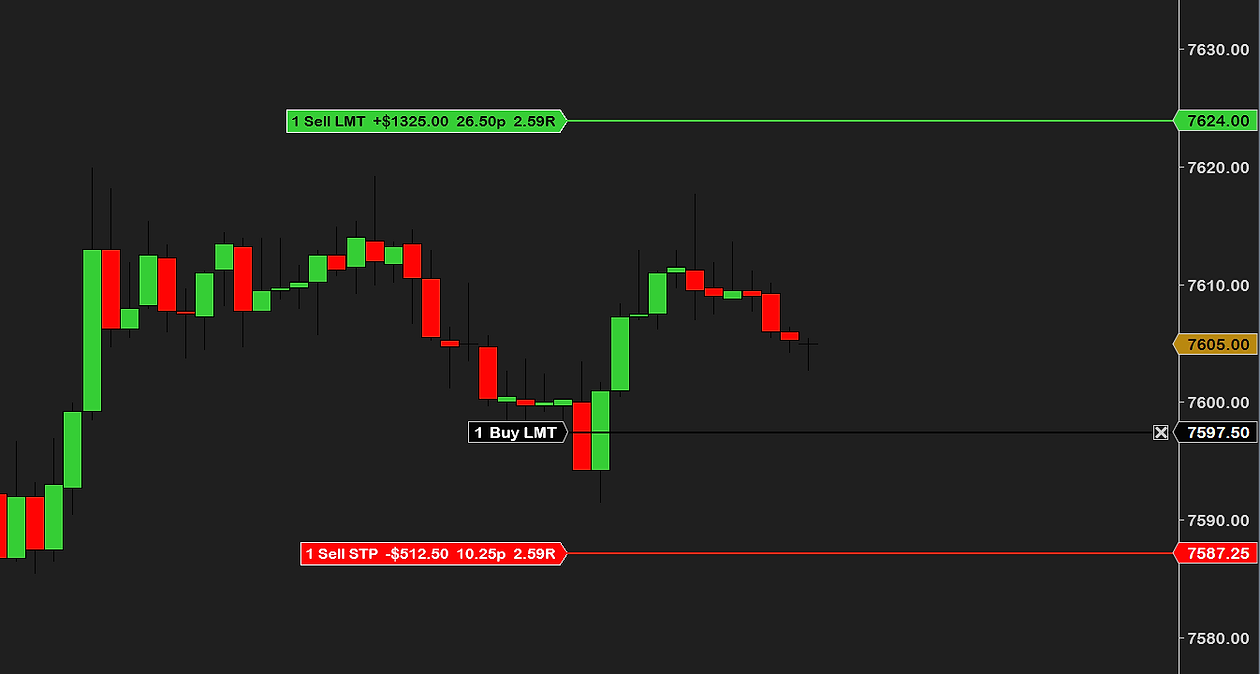
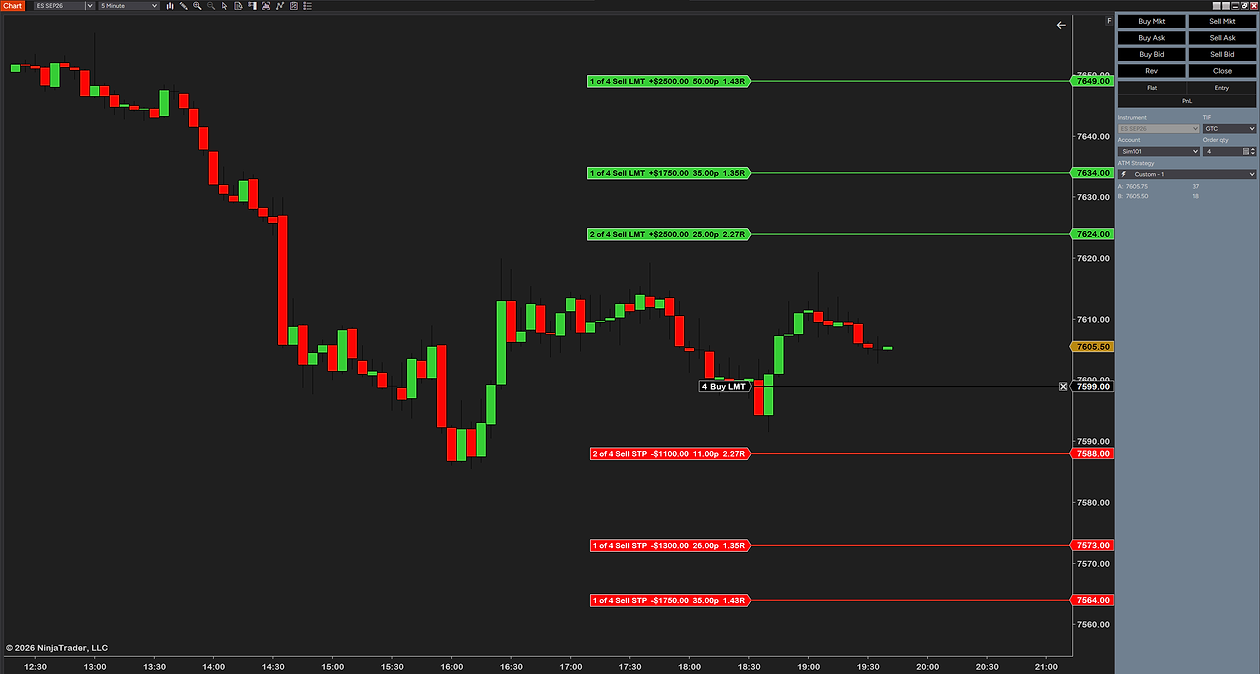
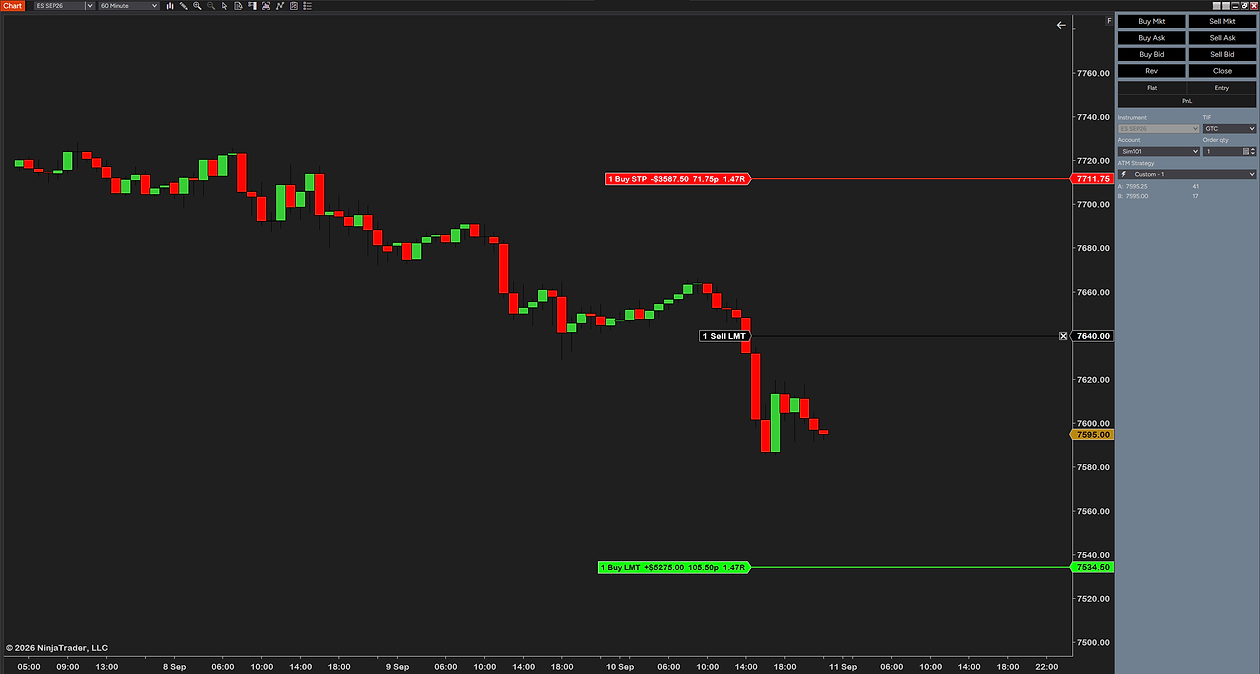
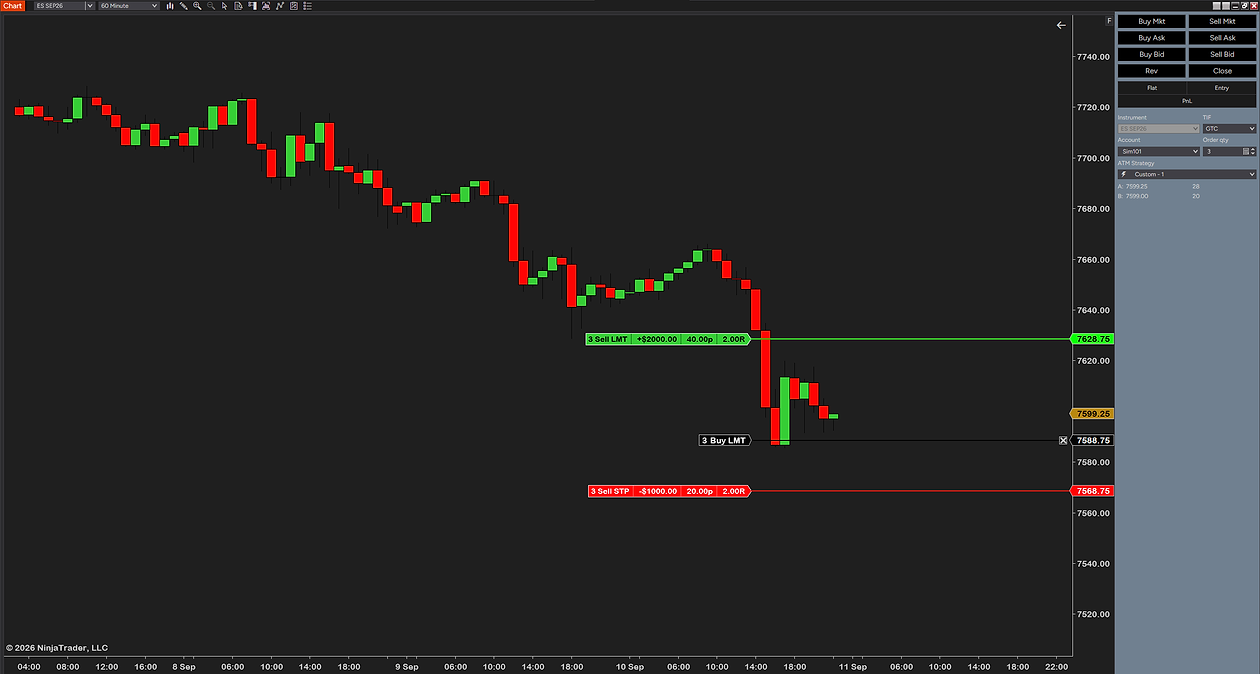
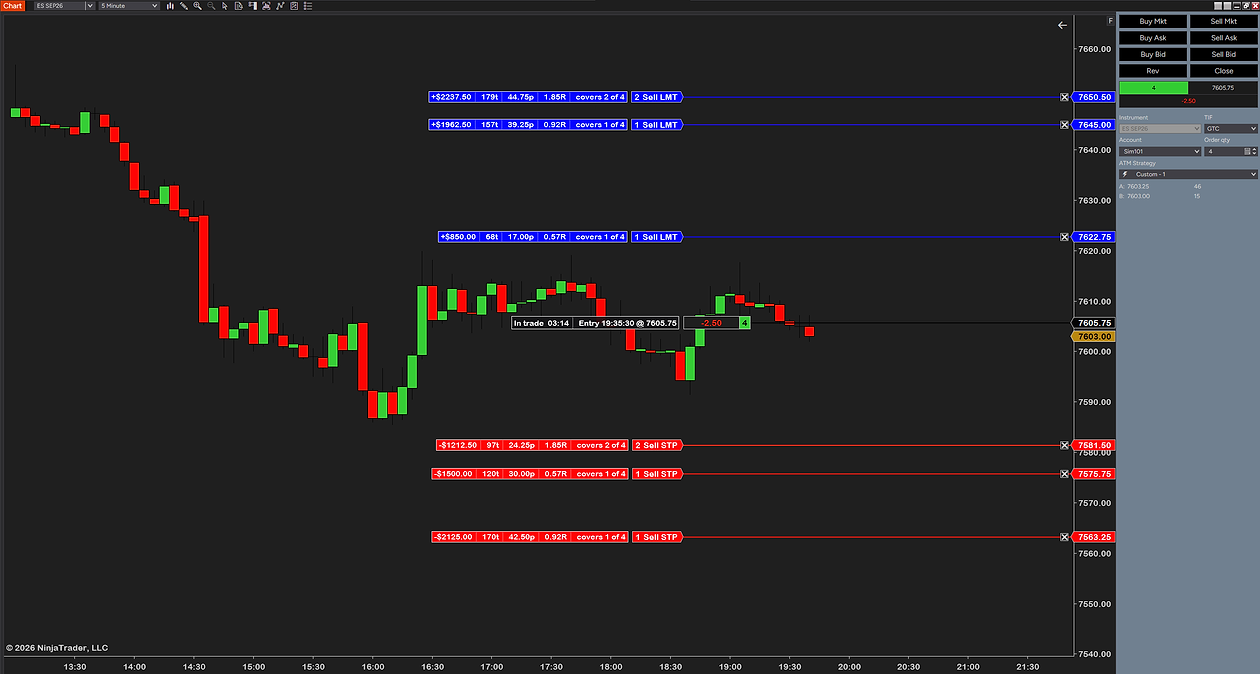
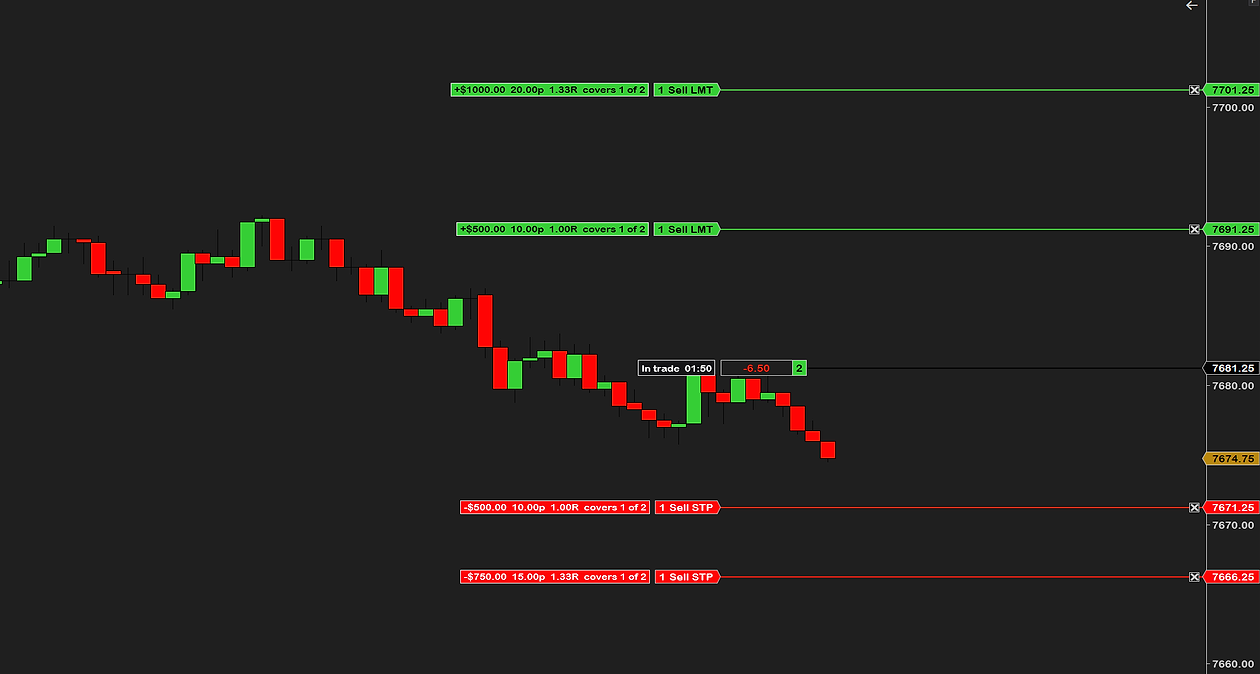
Between placing a limit entry and it filling, your ATM stop loss and profit target are defined but not yet live — and NinjaTrader draws nothing for them on the chart. You can read the numbers in the template, but you cannot see where those exits will actually land, or what they are worth in dollars, until the fill happens and it is too late to reconsider calmly.
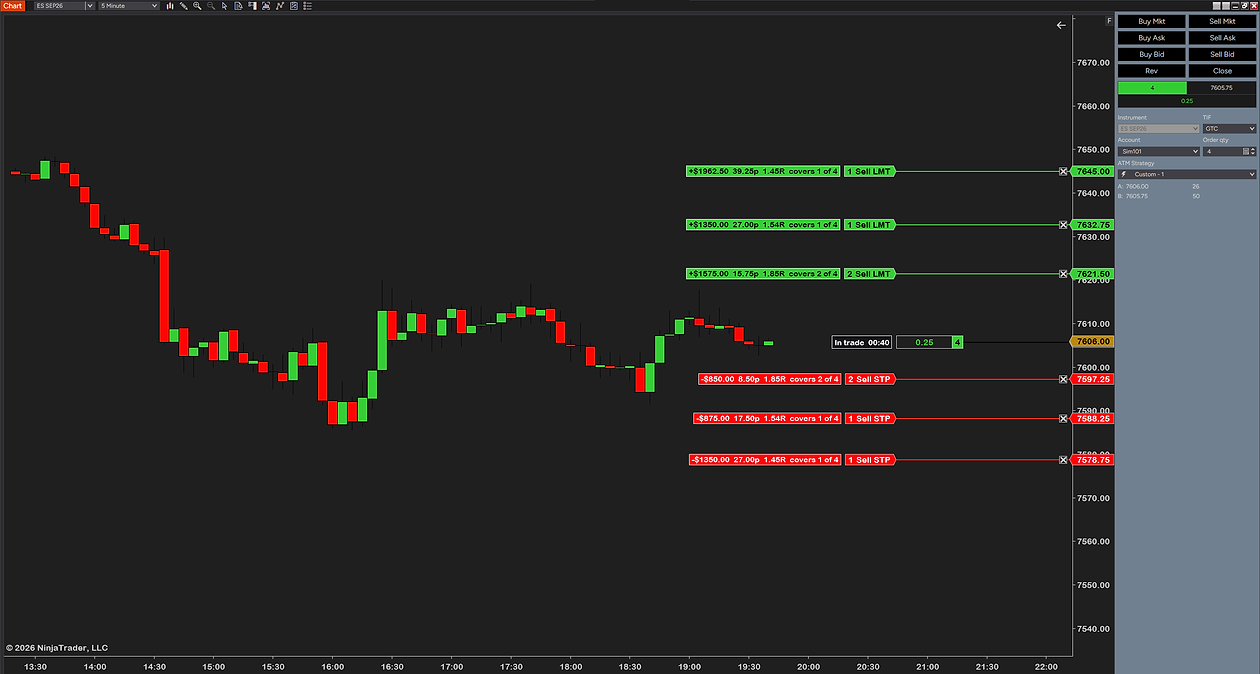
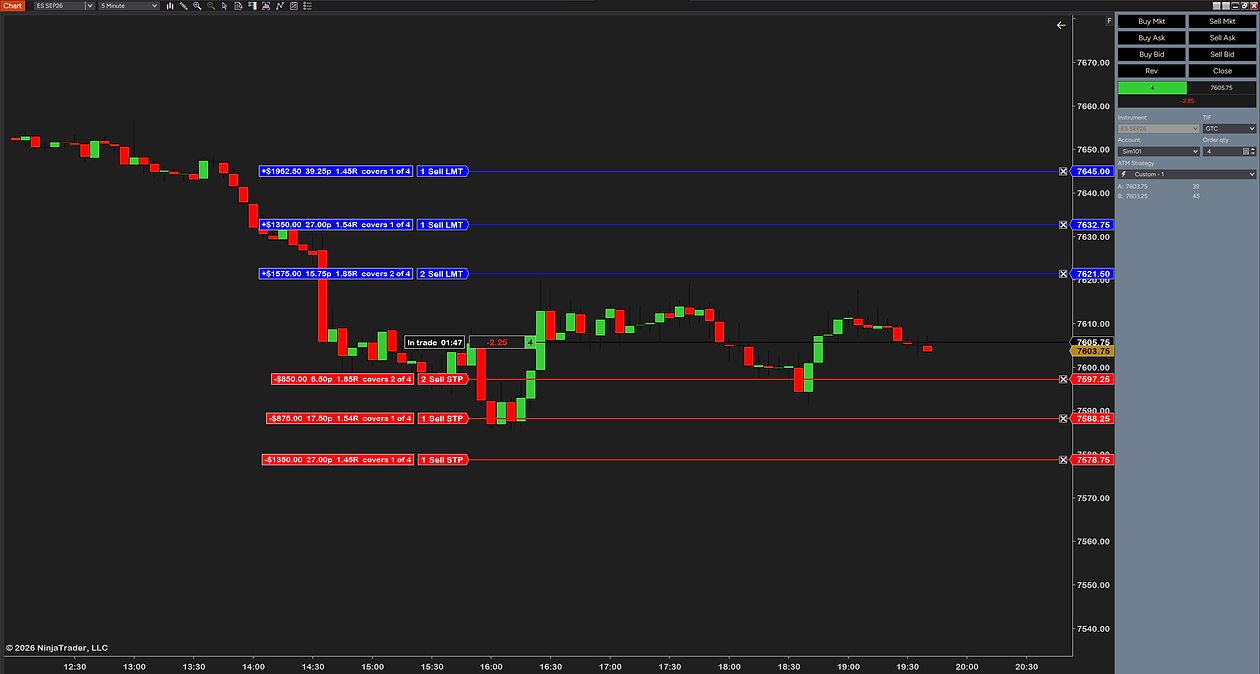
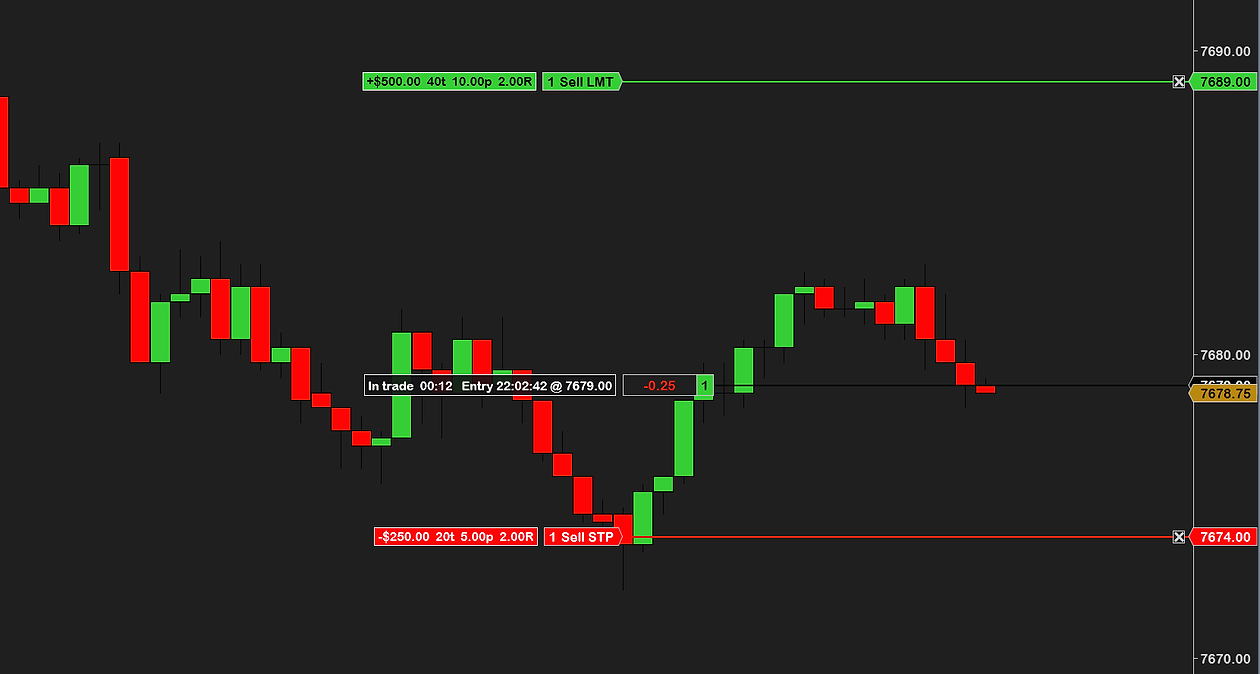
That is the problem our ATM risk reward tool solves: it reads the ATM bracket attached to your resting entry and draws the stop loss and profit target order lines on the chart while the entry is still pending, each one tagged with the dollars, ticks, points and R. It also does the Currency-mode maths above for you, so a $50 stop shows you where it will really sit.
Common questions
What does ATM stand for in NinjaTrader?
Advanced Trade Management. An ATM strategy is a saved template that submits your stop loss and profit target automatically the moment an entry fills, so the position is never sitting unprotected while you place exits by hand.
Where do I create an ATM strategy template?
In the ATM panel of Chart Trader or the SuperDOM. Set the stop and target in Strategy Parameters, then use Save as Template to name it. It then appears in the ATM Strategy dropdown wherever you trade. Custom means the values typed in the panel right now, used without saving.
What is ATM strategy selection mode?
It decides what the ATM dropdown does after you submit an entry. Keep selected ATM strategy template on order submission leaves your template selected for the next entry. Select active ATM strategy on order submission switches the dropdown to the running strategy, which is why a second entry can go in without a stop. Display selected ATM strategy only shows just the one you picked.
Why is my ATM strategy not working?
Usually one of: the dropdown is on None or Custom rather than your template, Chart Trader is not open on that chart, the selection mode moved the dropdown to the running strategy, or the template is in Price mode so the stop was rejected. NinjaTrader also refuses ATMs on accounts without permission, server-side ATMs in Playback, and shadow strategies on a sim account.
Is there a breakeven hot key for an ATM strategy?
Yes. Tools then Hot Keys in the Control Center has Breakeven ATM strategy and Close ATM strategy, alongside keys for the position, cancelling orders and flattening. Enable order entry hot keys must be on, and the breakeven key acts on the selected ATM strategy, so it does nothing if none is selected.
How do I see which ATM strategy is selected on a chart?
Add the @ATM variable to the chart's tab name. NinjaTrader describes it as displaying the currently selected ATM strategy in the tab name. Pair it with @ACCOUNT and each tab tells you what it will trade with before you click.
What is auto breakeven in an ATM strategy?
A stop strategy setting, not a separate template. Profit trigger is how far price must move in your favour before the stop moves, and Plus is how many ticks beyond the fill it then sits. Auto trail adds up to three steps, each with a profit trigger, a stop distance and a frequency.
Can a NinjaScript strategy use an ATM template?
Yes. NinjaTrader's own SampleAtmStrategy calls AtmStrategyCreate with a template name, and its comment says the template must already exist in NinjaTrader, SuperDOM for example. Build and save the template first; the code only refers to it.
Related guides
- Does NinjaTrader 8 have a risk reward tool? — the free built-in drawing tool, and why a drawing is not your bracket.
- Previous day high, low and the session opens — the levels a stop usually has to sit beyond.
- Initial balance trading — another way of choosing where a bracket gets built.
The honest part
ATM strategies are a NinjaTrader feature, not ours, and the built-in setup is genuinely good. If you trade market orders, you place the entry and the bracket appears immediately — there is no gap and nothing to add.
The two traps above are worth ten minutes of your time regardless of what you use to trade. Open your templates, check which parameter type each row is set to, and if any of them are in Currency, do the division once so you know what your stop distance really is.