How to See Ticks Left on the Bar: NinjaTrader 8 Tick Counter Explained
On a tick chart the only number that matters near the close is how many ticks are left. NinjaTrader shows it, and lets you put it in one of eight places — what it will not do is size it, colour it on its own, alert you, or follow you to a time chart.
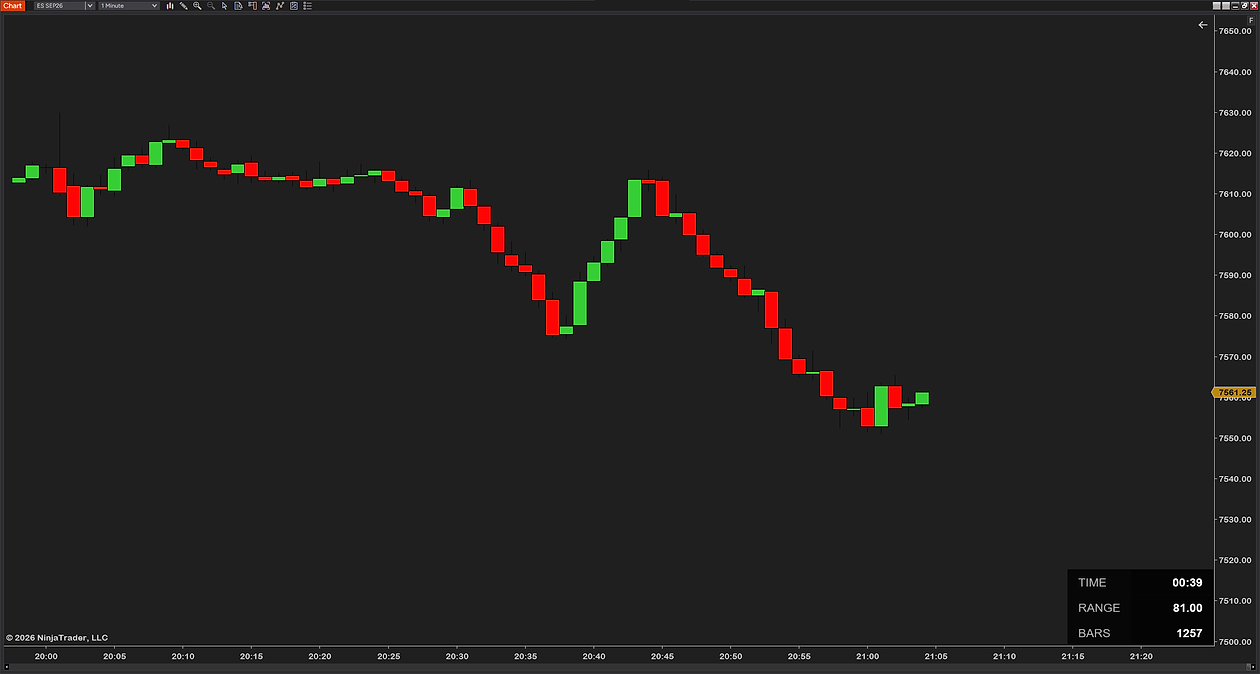
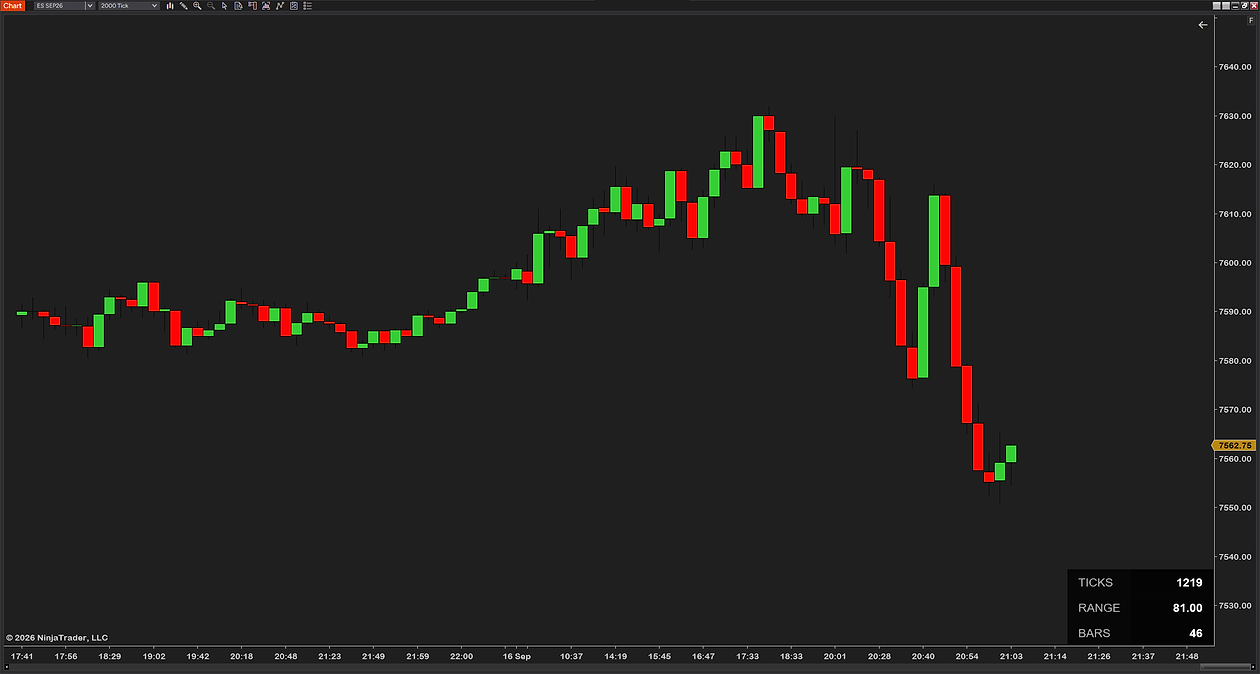
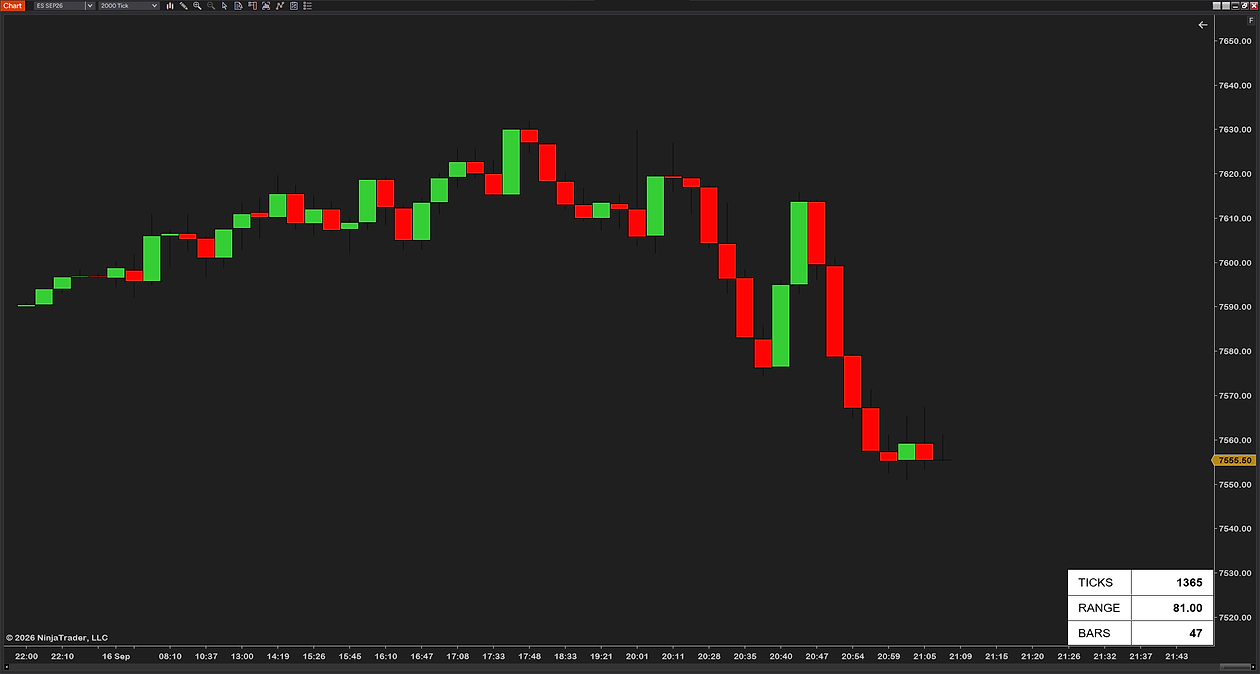
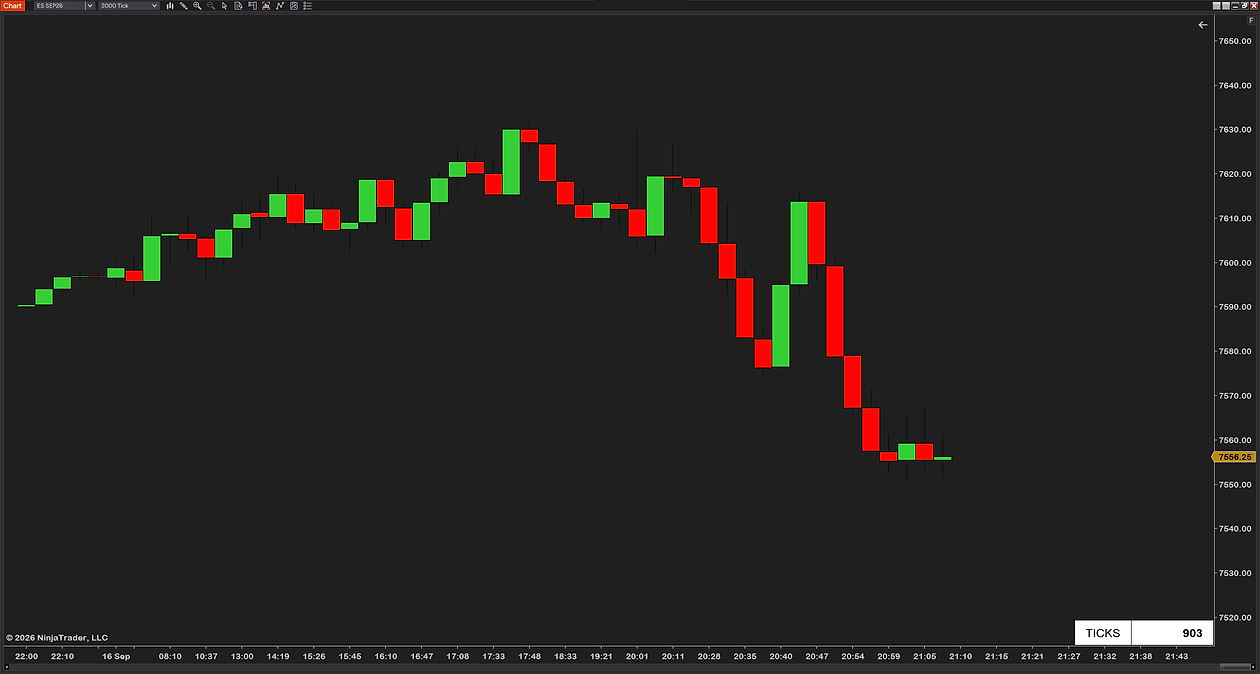
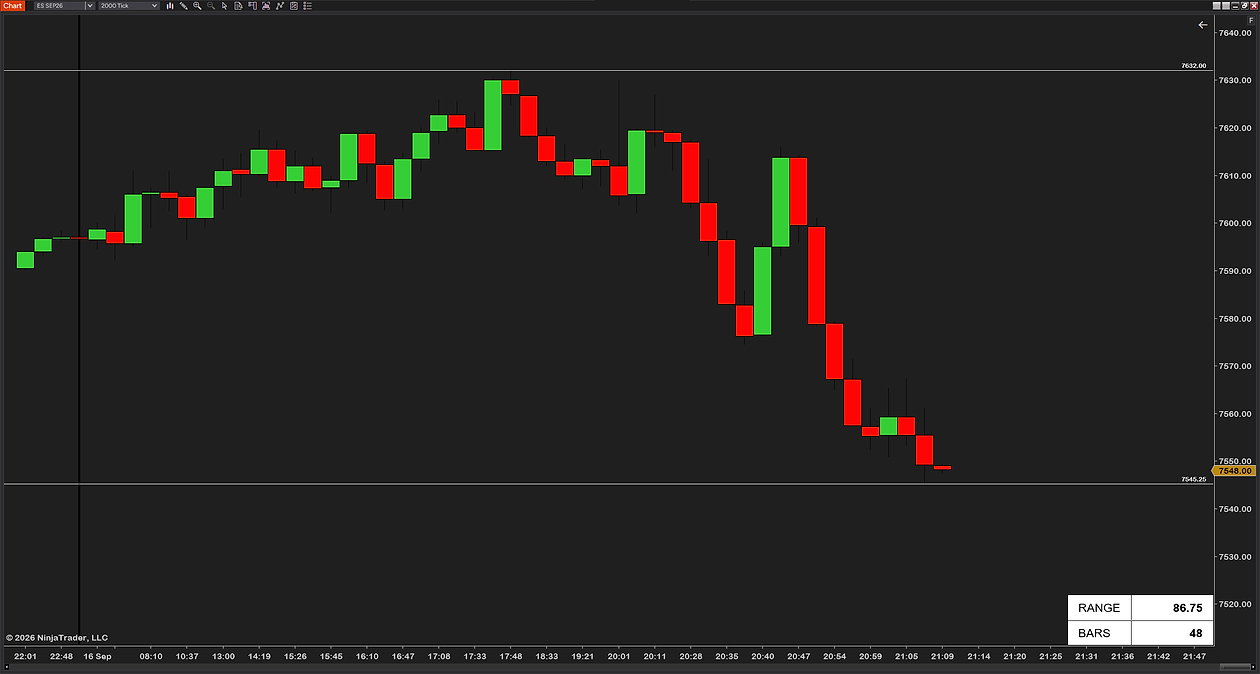
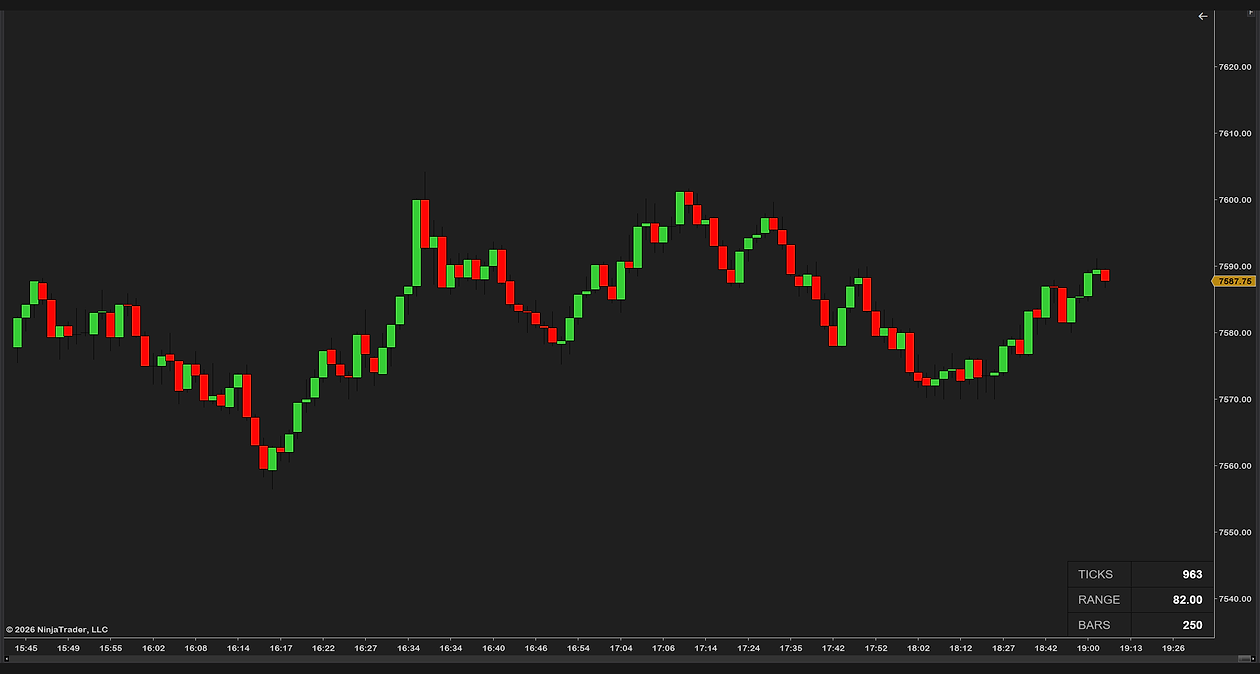
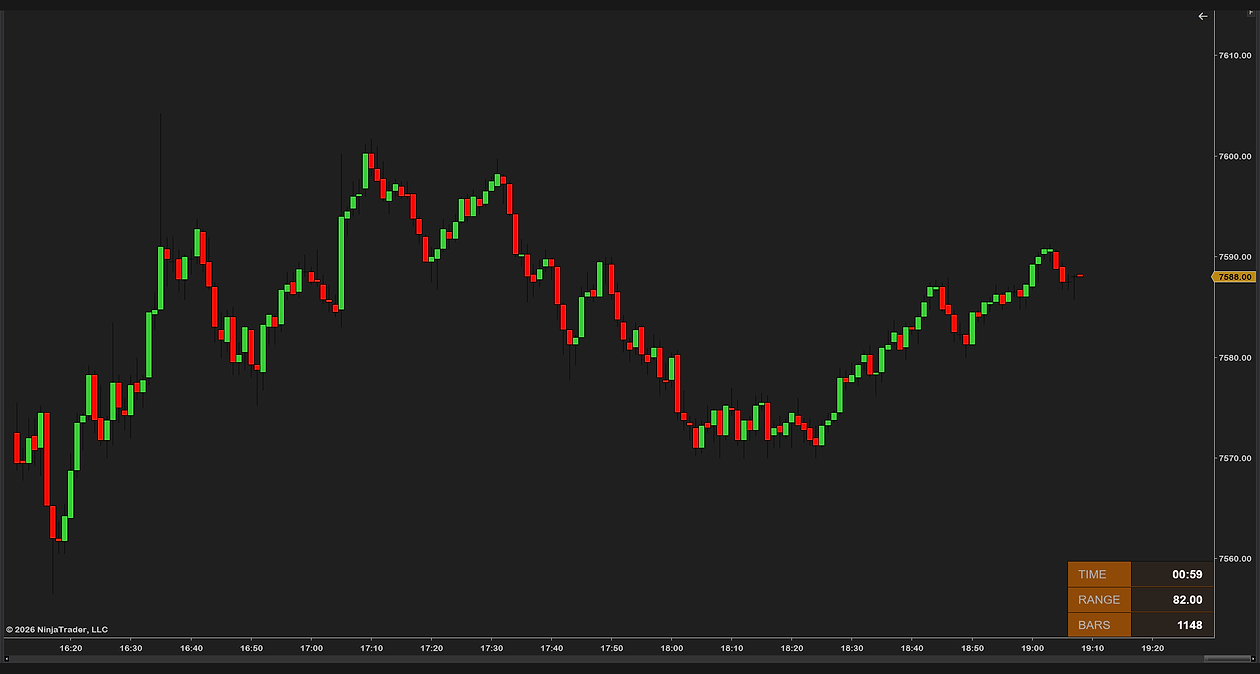
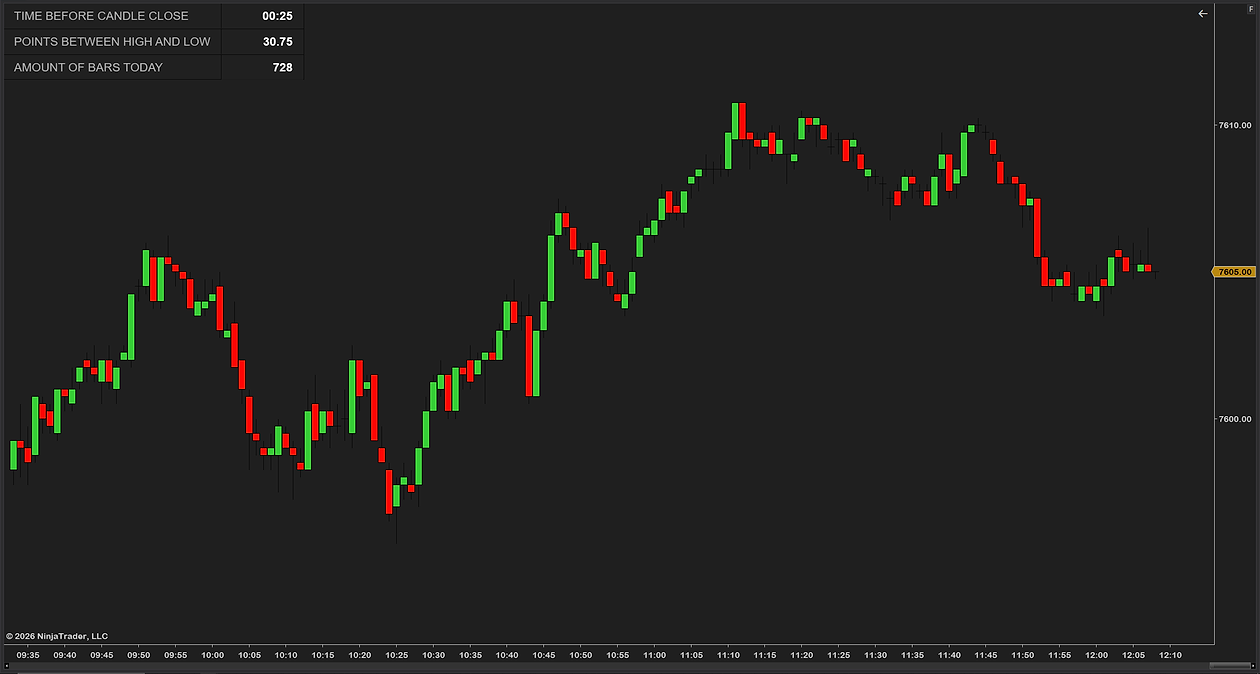
Does NinjaTrader 8 have a tick counter?
Yes. It is one of the standard indicators that ships with the platform, and NinjaTrader’s own description is exact: it “displays the remaining number of ticks needed to complete the currently forming tick bar”, updating on every tick and resetting when a new bar begins.
That number matters more on a tick chart than a countdown does on a time chart. A 500-tick bar does not close on a schedule — it closes when the market has traded 500 times. In fast conditions that can be seconds; in the afternoon lull it can be several minutes. Without the counter you genuinely cannot tell whether the bar you are watching is about to finish or has half its life left.
How to add the built-in tick counter
- Right-click anywhere on your chart and choose Indicators…
- Find Tick counter in the list on the left and double-click it to add it.
- Under Visual, set Text position to where you want the number — it defaults to the bottom right.
- Click OK. The remaining tick count appears on the chart straight away, reading Ticks Remaining = followed by the number.
It needs a tick chart to be useful. On a time-based chart the equivalent is the Bar timer, which counts down seconds instead — that one is covered in our guide to the bar timer and countdown.
Its three settings
There are exactly three, and it is worth knowing what each does because the last one answers the most common complaint about this indicator.
| Setting | Default | What it does |
|---|---|---|
| Count down | On | Shows ticks remaining. Turn it off and it shows ticks so far instead, labelled Tick Count |
| Show percent | Off | Shows the bar’s completion as a percentage instead of a tick count — 62% left, or 38% done, depending on Count down |
| Text position | Bottom right | Where the number sits. Eight choices: top, middle or bottom, on the left, in the middle or on the right |
So the built-in counter can be moved — a lot of forum answers say otherwise, and they are wrong on this point. What it cannot do is be sized or coloured on its own: it draws in the chart’s label font and the chart’s text colour, so the only way to make it bigger is to make every label on that chart bigger through the chart’s properties. It also does not show in the Data Box, and it calculates on every tick, which is what you want from something whose job is to be current.
Which chart types it works on
Any bar built from a set number of ticks. That means ordinary tick bars, and also the Heiken Ashi, Volumetric and Price on volume bar types when they are built on a tick base. On anything else — a minute chart, a range chart, a volume chart — it does not go blank; it prints its own message, “Tick Counter only works on bars built with a set number of ticks”, in the corner where the count would have been.
That is the origin of a real annoyance. The built-in tools are split by chart type: tick charts get the Tick counter, time charts get the Bar timer, range charts the Range counter, volume charts the Volume counter. Four indicators answering one question — how much is left on this bar? If you trade a single chart type forever you will never notice. If you flip between a 2000-tick chart and a 5-minute chart during the session, you are either adding and removing indicators as you go, or keeping all of them on and living with three of the four showing an error.
What it will not do
- Size itself. No font setting of its own. It follows the chart’s label font, so it is as big as every other label on that chart and no bigger.
- Colour itself. Same story: it uses the chart’s text colour. On a dark chart with white labels it is white.
- Show anything else. Ticks remaining, ticks so far, or a percentage. Not the bar’s range, not the day’s range, not how many bars have printed.
- Follow you to a time chart. On a minute chart it shows its error message, and you need the Bar timer instead.
- Alert you. It draws a number and nothing more.
For a lot of traders that is fine. It becomes a problem when you are on a large monitor and the label font that suits the price axis is too small to read a countdown at a glance — which defeats the point of a number whose whole job is to be readable without looking directly at it.
Can you get an alert when the bar is nearly finished?
Not from the built-in one. It displays a number and nothing else — there is no sound, no flash and no threshold you can set for “tell me when there are ten ticks left.”
Some third-party counters on the NinjaTrader Ecosystem do add alerts, and if an audible warning is the specific thing you want, that is the feature to search for. Ours does not do alerts either, and we would rather say so here than have you install it and find out. What it does solve is size, colour, the extra numbers, and the chart-type problem.
One panel for every chart type
The alternative is a single panel that answers the question on any chart type and lets you decide how it looks. That is what our free tick counter indicator does. Concretely:
- Ticks remaining on a tick chart — and it switches to time remaining by itself on a time chart, so you are not swapping indicators when you change timeframe.
- Placement you choose — pick the corner, then nudge it with an X and Y offset until it sits exactly where you want it.
- Size and font you choose — a font family and size of its own, independent of the chart’s labels, so the countdown can be large while the axis stays small.
- Your own colours — separate label and value text colours, label and value backgrounds, a border colour and a panel opacity, so it can be loud or almost invisible.
- The bar’s range and the day’s range on the same panel, since how far this bar has travelled is usually the next thing you want after how much of it is left, and a bars-so-far row for the session.
- Rows you can switch off — if you only want the tick count, turn the range and bars rows off and keep the panel small.
How to install it
- Download the free tick counter indicator — keep the .zip zipped; NinjaTrader wants the zip, not the files inside it.
- Open the Control Center and go to Tools → Import → NinjaScript Add-On…, then select the .zip. NinjaTrader documents the process in its import guide, and we walk through every step, error message and the update rule on our installation page.
- Close and restart NinjaTrader. Do this even if it does not ask you to — NinjaTrader keeps the old version loaded in memory until it restarts.
- On a chart, right-click → Indicators…, add it, and set the corner, font size and colours.
Common questions
How do I see how many ticks are left on the bar?
Add NinjaTrader's built-in Tick counter to a tick chart: right-click the chart, choose Indicators, double-click Tick counter and click OK. With Count down on, which is the default, it prints Ticks Remaining followed by the number, in the corner set by Text position. It updates on every trade.
Does NinjaTrader 8 have a tick counter?
Yes. The Tick counter is one of the standard indicators that ships with the platform. It shows how many ticks are left before the current bar closes on a tick chart, updates on every tick and resets when a new bar begins. Add it from the Indicators list on any chart.
Can I move the built-in tick counter?
Yes. Under Visual it has a Text position setting with eight placements, top, middle or bottom on the left, middle or right of the chart. It defaults to the bottom right. What it does not have is a font or colour setting of its own; it uses the chart's label font and text colour.
How do I make the tick counter bigger?
The built-in one has no size setting, so the only way is to enlarge the chart's label font through the chart's properties, which enlarges every label on that chart. A counter with its own font size, such as our free one, lets the countdown be large while the axis labels stay small.
Does the tick counter work on a minute or range chart?
No. It only understands bars built from a set number of ticks, including Heiken Ashi, Volumetric and Price on volume bars on a tick base. On a time, range or volume chart it prints its own message saying it only works on bars built with a set number of ticks, and you need the Bar timer, Range counter or Volume counter instead.
What does the Count down setting do?
On, which is the default, the counter shows ticks remaining until the bar closes. Off, it shows ticks so far in the bar instead, labelled Tick Count. Show percent turns either number into a percentage of the bar's completion.
Can the tick counter alert me when a bar is about to close?
No. The built-in Tick counter draws a number and nothing else, with no sound, flash or threshold. Some third-party counters on the NinjaTrader Ecosystem add alerts; ours does not either, and says so.
Is there one counter that works on tick and time charts?
Not among the built-in tools, which are split by chart type. A single panel that shows ticks remaining on a tick chart and switches to time remaining on a time chart by itself removes the swapping, which is what our free tick counter does.
Related guides
- NinjaTrader 8 bar timer and countdown — the time-chart half of this question, and the four messages the Bar timer prints instead of a countdown.
- What is bar counting? — the other kind of counting: numbering bars from the open.
- Why a NinjaTrader chart lags — if the count seems to stall, this is the page.
The honest part
A tick counter is a convenience, not an edge. Nobody has ever made money because they could read the remaining tick count more easily.
What it does is stop one specific bad habit. On a tick chart it is genuinely hard to judge how close a bar is to closing, so traders either sit on their hands waiting for a close that already happened, or fire an entry on a bar that still has two hundred ticks to run and watch it reverse. Having the number in front of you removes the guesswork from that one decision.
And if the built-in one, in the corner you picked, at the chart’s label size, on the only chart type you trade, is enough — use it. It is already installed and it costs nothing.