How to Enable Chart Trader in NinjaTrader 8: Settings and Fixes
Chart Trader is the panel that lets you trade from the chart itself. It has three states, one rule NinjaTrader enforces before it will show at all, and a settings dialog most people never open. Here is how to turn it on, what every control and setting does, and the checklist for when it is greyed out, hidden or not working.
What Chart Trader is
Chart Trader is NinjaTrader’s order-entry panel for charts. NinjaTrader ships several order-entry windows — Basic Entry, Order Ticket, SuperDOM, FX Pro and Chart Trader — and Chart Trader is the one that lives on the chart, so you place, see and move orders against the bars instead of in a separate window.
It is also where two things that matter to every other tool are chosen: the account a chart trades on, and the ATM strategy that will bracket the next entry. A chart without Chart Trader has neither, which is why so many add-ons, including ours, insist on it being open.
How to enable Chart Trader
- Right-click the chart and choose Properties.
- Find Chart trader in the list — it sits with the general chart settings, near Show scrollbar and Show date range.
- Set it to Chart Trader and click OK. The panel opens on the right of the chart.
- In the panel, pick the Account and, if you use one, the ATM Strategy. The instrument is already the chart’s.
If step 3 will not stick, read the one rule before changing anything else.
The three states: Off, Chart Trader, Hidden
The setting has exactly three values, and the middle one causes most of the “my Chart Trader disappeared” questions:
- Off — no panel. The chart has no account and no ATM selection of its own.
- Chart Trader — the full panel, open on the right.
- Chart Trader (Hidden) — the panel is loaded but collapsed to a narrow strip. Everything is still there: the account, the ATM strategy, the order lines on the chart. It is the state to use when you want to trade from a hotkey or an add-on without giving the panel screen space.
Hidden is not Off. Add-ons that read Chart Trader, ours included, work in the Hidden state; they do not work in Off, because there is nothing to read.
The one rule that greys it out
NinjaTrader will not put Chart Trader on a chart unless the price axis is on the right. Its own message, word for word: “At least one Data Series scale justification parameter must be set to ‘Right’ in order to use Chart Trader.”
That setting is per data series: right-click the chart, choose Data Series, and look at Scale justification. Charts set up with the scale on the left, or with every series on an overlay scale, cannot host Chart Trader. Set one series to Right, click OK, and the Chart trader option works again. This is the single most common reason the option appears greyed out on a chart that was fine yesterday — usually because a template with a left scale was loaded onto it.
The panel, control by control
| Control | What it does |
|---|---|
| Instrument | Follows the chart. You do not pick it here |
| Account | The account every order from this chart goes to. If the list is empty or the one you want is missing, the connection for that account is not up — see below |
| ATM Strategy | The template that brackets the next entry with a stop loss and profit target. <None> means no bracket; Custom means the values typed in the panel right now. Covered in full in the ATM strategy guide |
| Quantity | The size of the next entry. This box wins over whatever quantity the ATM template saved |
| TIF | Time in force for the orders — Day or GTC in practice |
| Buy Mkt / Sell Mkt | A market order, now |
| Buy Ask / Sell Bid | A limit order at the current ask (to buy) or bid (to sell) — usually fills at once, but as a limit, so it cannot chase |
| Buy Bid / Sell Ask | A limit order on your own side of the spread — a resting order that waits to be hit |
| Close | Closes the position and cancels the working orders of the ATM strategy on this chart |
| BE | Moves the ATM strategy’s stop loss to breakeven. Acts on the selected strategy, so it does nothing while none is selected |
| Targets | A running ATM strategy can have a target added or removed from here. There is no equivalent for the stop — NinjaTrader offers no way to remove a stop loss from a live bracket, and that is deliberate |
| PnL | The position’s profit or loss in the unit you choose in the settings, coloured by sign |
Every Chart Trader setting
Chart Trader has its own properties dialog, separate from the chart’s, and it is where the panel is actually tuned. These are the settings, using NinjaTrader’s own labels:
| Setting | What it does |
|---|---|
| Order display bar length (% of chart) | How far the order lines extend across the chart, as a share of its width. Short lines keep the chart readable; long lines make them easy to grab |
| PnL display unit | Currency, Percent, Pips, Points, Ticks, or None |
| Show realized PnL when flat | Keep showing the day’s closed result after the position is gone |
| ATM strategy selection mode | What the ATM dropdown does after you submit: Display selected ATM strategy only, Select active ATM strategy on order submission, or Keep selected ATM strategy template on order submission. The second one is why a second entry can go in without a stop — explained here |
| Auto scale | Whether the chart rescales to keep your order lines in view |
| Scale quantity | The step the quantity box moves by when you scale in or out |
| Predefined stop limit offset | On, plus a value: how many ticks the limit sits from the stop on a stop-limit order, so you do not set it by hand each time |
| Simulated order volume trigger | Holds a simulated stop on your machine until this much volume has traded at the price, instead of resting it at the exchange. Leave it off unless you know exactly why you want it |
| Quantity modification for stocks | Stocks only: whether clicking again increases the working order’s size or submits a new order |
| Action, Buy and Sell button colours | The three button backgrounds |
| Limit, MIT, Stop limit, Stop market, Stop loss, Profit target, Position entry price | The line style of each kind of order on the chart — colour, width and dash, set separately, so a stop never looks like a target |
| PnL and position colours | Long and short backgrounds, positive and negative PnL text, long and short position text |
One more switch lives on the chart’s right-click menu rather than in this dialog: Show Chart Trader Order Lines. If your orders are working but you cannot see them on the chart, that is the one to check.
Placing and moving orders on the chart
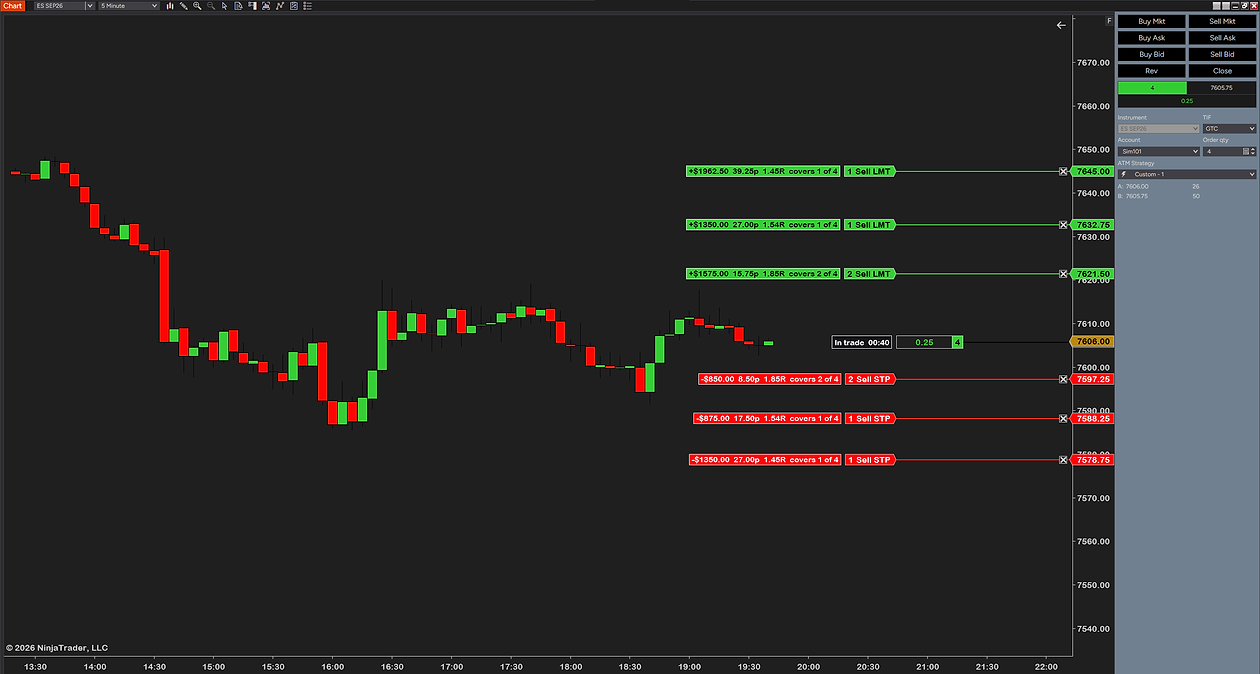
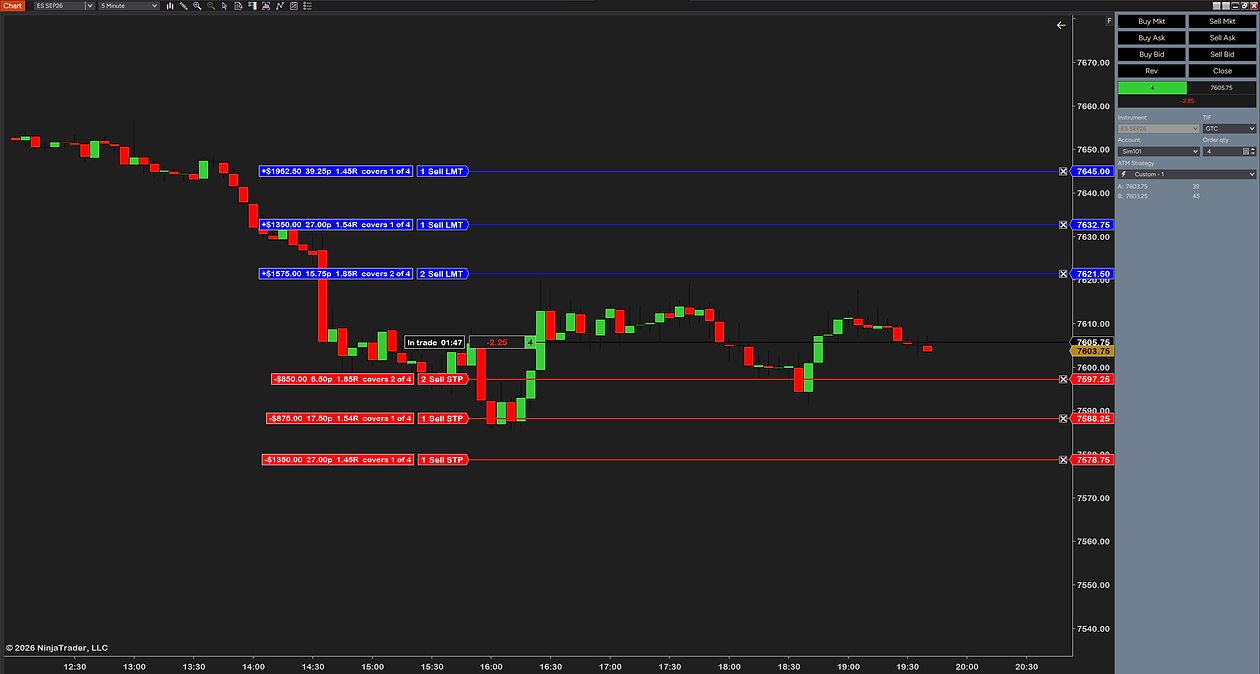
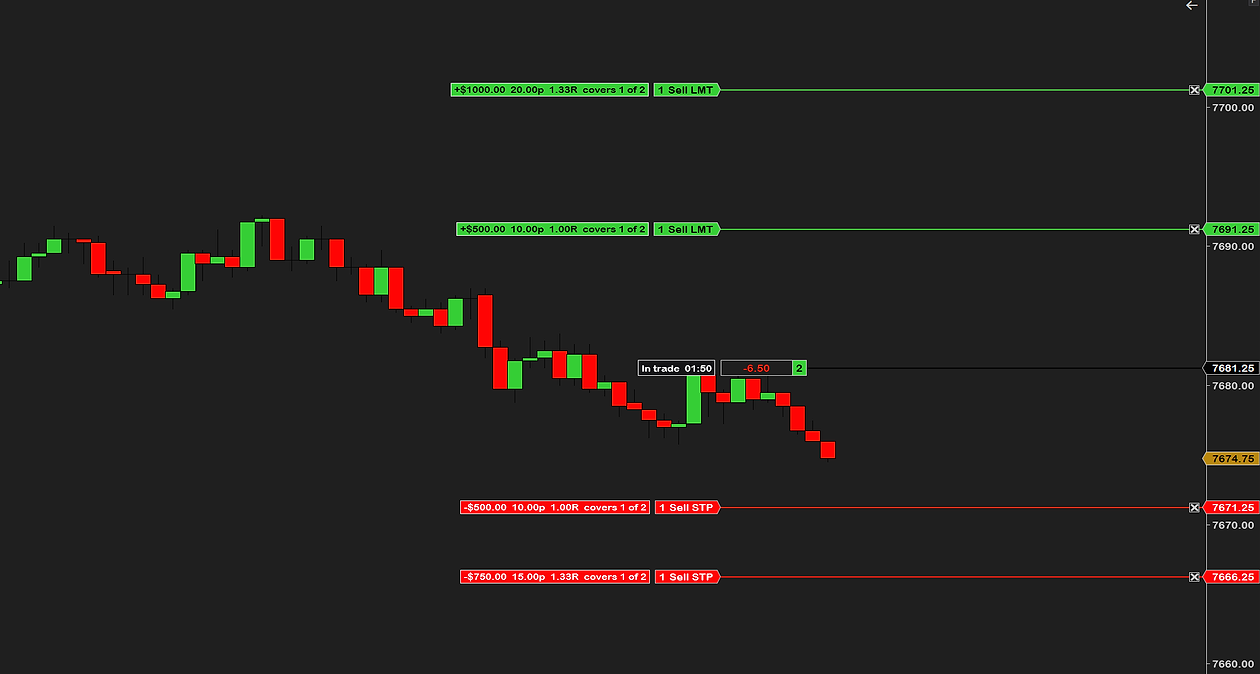
The buttons submit; the lines manage. Once an order is working, NinjaTrader draws it as a line at its price, labelled with its type and size, and you move it by dragging the line. The stop loss and profit target of a filled ATM bracket get lines of their own, in the colours set above.
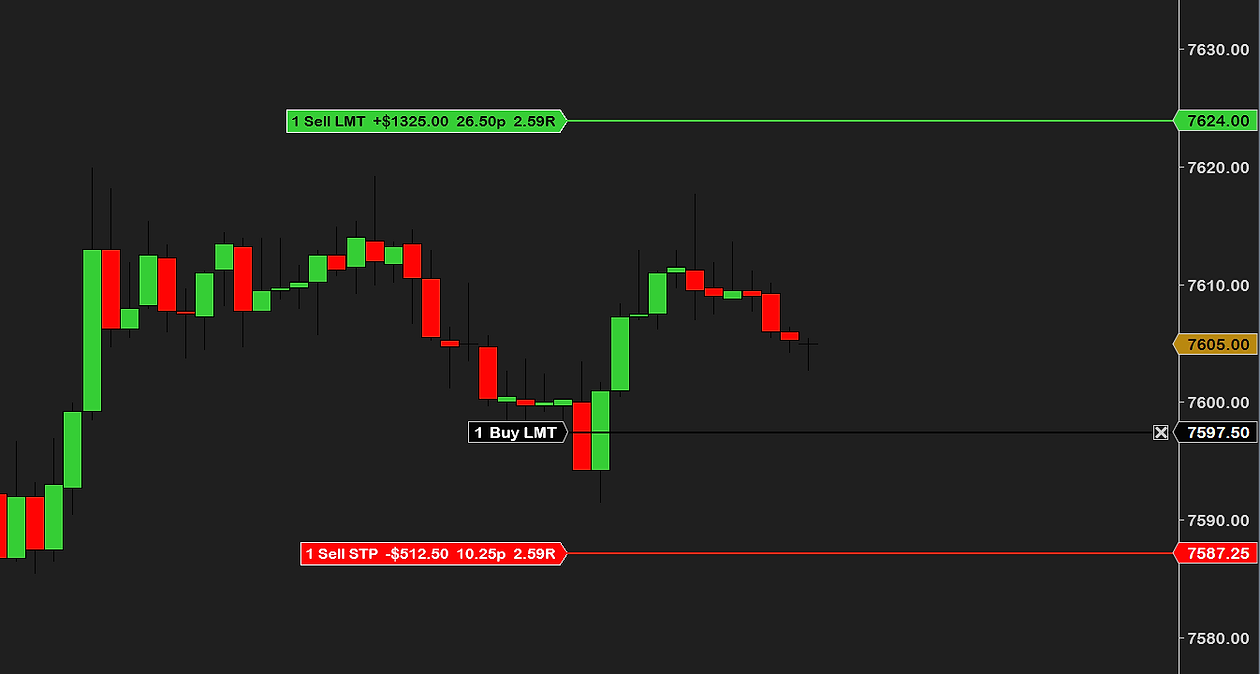
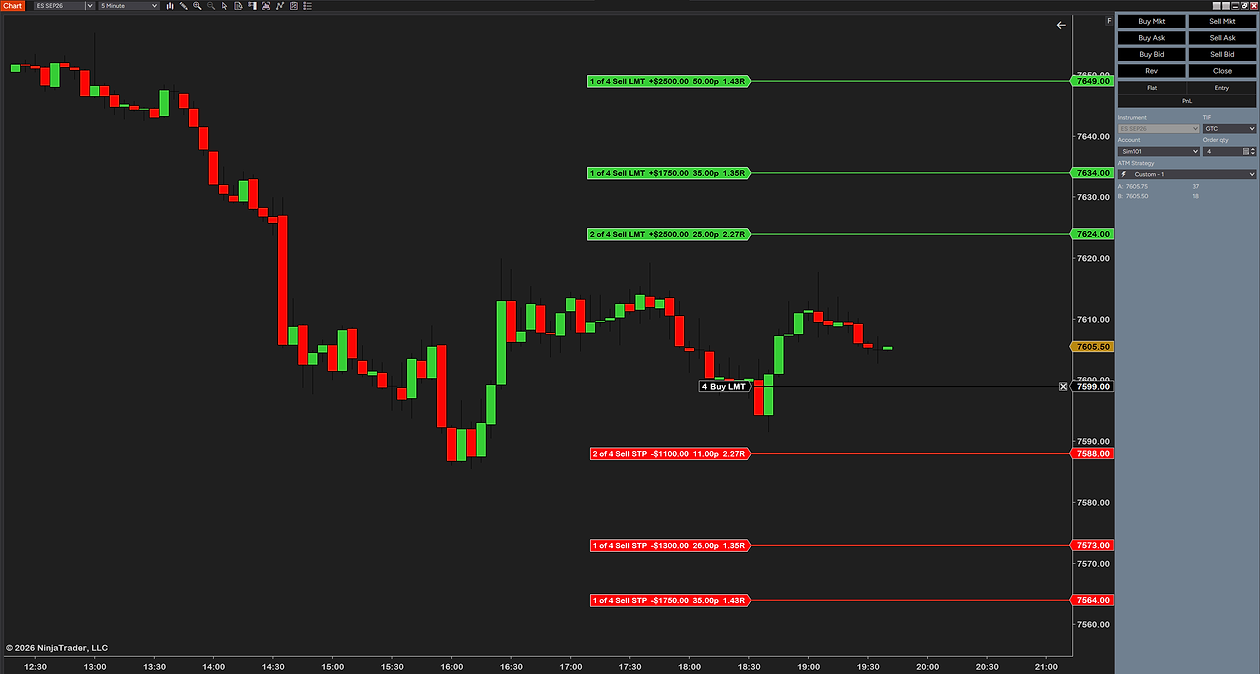
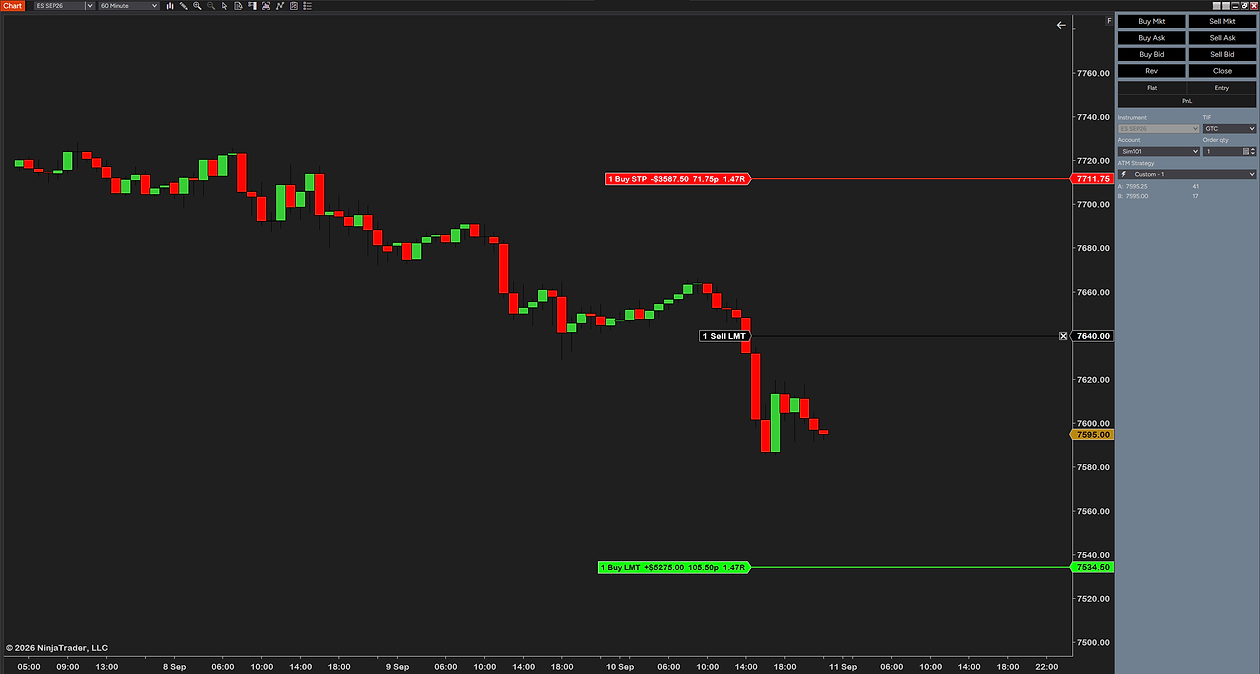
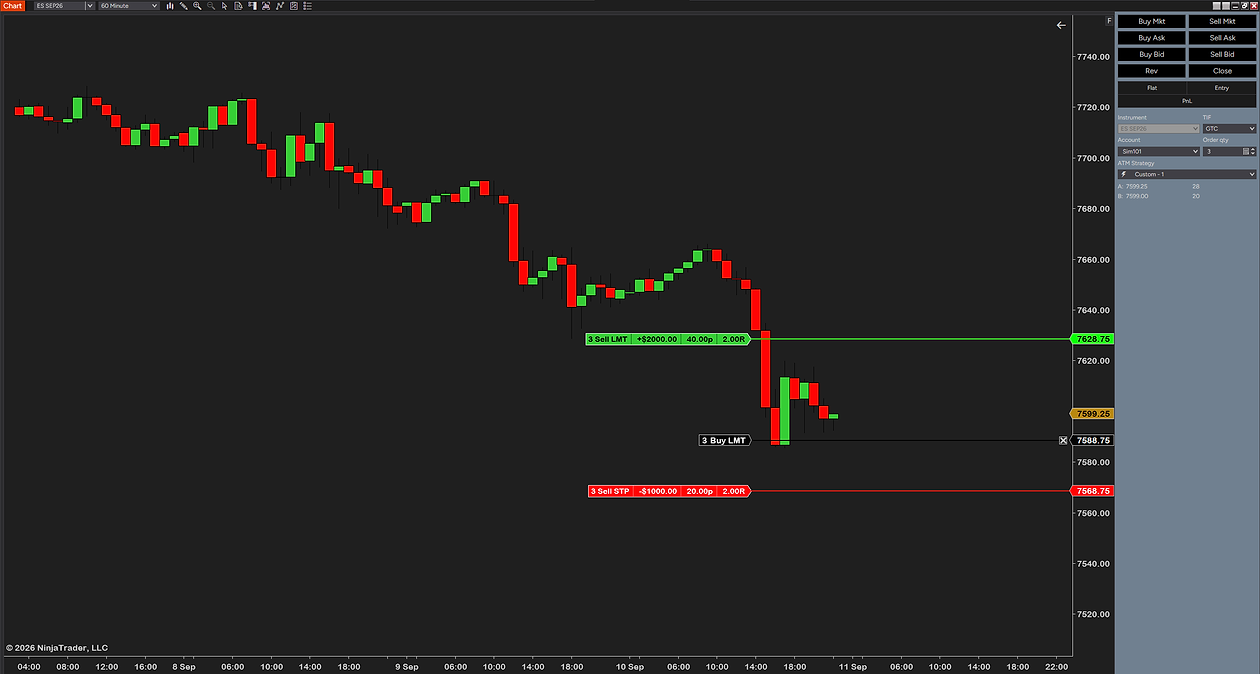
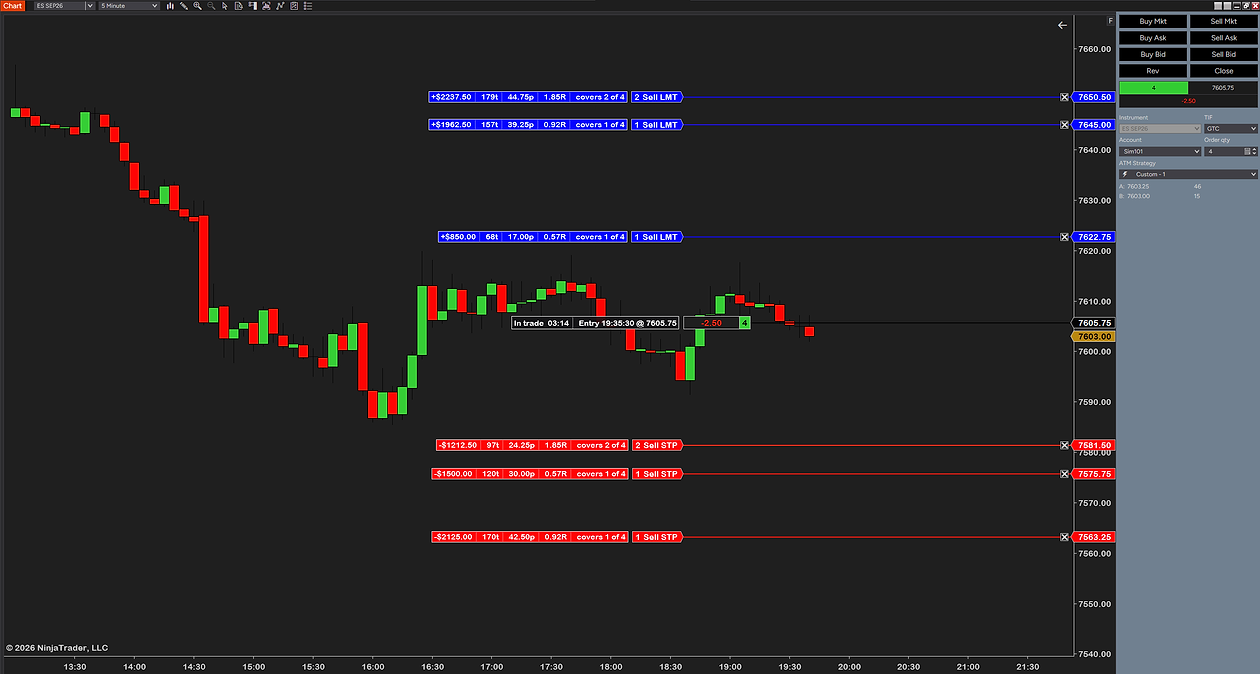
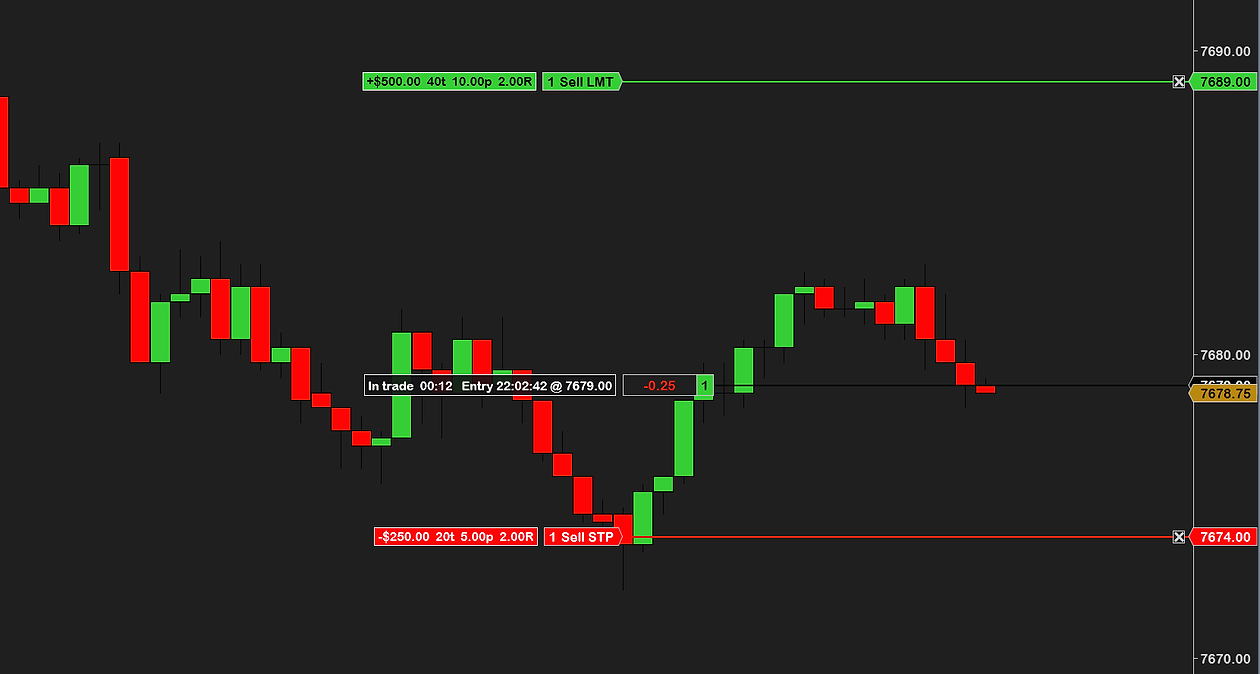
There is one gap worth knowing about before you rely on it. Between placing a resting entry and it filling, the ATM bracket that will protect it is defined but not yet live — and NinjaTrader draws nothing for it. You can see the entry line; you cannot see where the stop and target will land, or what they are worth, until the fill. That is exactly the window our ATM risk reward tool covers: it reads the template attached to the pending entry, draws the stop and target lines with the dollars, ticks, points and R on each, and lets you drag them to change the real order before the fill. It needs Chart Trader open on the chart — Hidden is fine — and an ATM strategy selected, and it never places an entry itself.
Why Chart Trader is greyed out, hidden or not working
Check these in order. The first three account for nearly every case.
- It is set to Off. Chart Properties → Chart trader → choose Chart Trader. Templates and workspaces carry this setting, so loading either can switch it off without you touching it.
- It is set to Hidden. The panel is collapsed to a strip on the right edge. Switch the setting to Chart Trader to unfold it. Nothing is broken.
- The scale is not on the right. NinjaTrader’s exact message is “At least one Data Series scale justification parameter must be set to ‘Right’ in order to use Chart Trader.” Data Series → Scale justification → Right.
- The account is not connected. The panel opens, but the account list is empty or the buttons do nothing. NinjaTrader’s own messages here are “Account ‘…’ is not connected” and, after a change of account settings, “A disconnect and reconnect is required to make the account change effective.” Connect to the broker connection, not only to a data feed: a data-only connection has no trading account to offer.
- The order lines are switched off. Orders are working but invisible on the chart: right-click the chart and turn Show Chart Trader Order Lines back on.
- The ATM strategy dropdown moved. After a trade the dropdown may switch to the running strategy, so the next entry goes in without a bracket. That is the selection mode, not a fault — see selection mode.
- The breakeven button does nothing. BE acts on the selected ATM strategy; with none selected there is nothing to move.
Enhanced and custom Chart Trader add-ons
A search for “enhanced” or “advanced chart trader” turns up add-ons that build on the panel: extra buttons, one-click bracket entry, position sizing from a dollar risk, and tools that draw what NinjaTrader leaves undrawn. They all read the same panel you just enabled, which is why every one of them has the same first requirement: Chart Trader on the chart, an account selected.
Ours does one thing in that family. It does not add buttons or place entries. It shows the stop loss and profit target of the bracket you have already placed, before the fill, with their value on every line, and lets you move them. If your problem is “I cannot see my risk until I am in”, that is the tool; if your problem is placing orders faster, it is not, and one of the entry-focused add-ons is a better fit.
One thing to keep separate: NinjaTrader’s web platform has its own chart trading, and add-ons for the desktop platform do not run there. Everything on this page is the desktop Chart Trader.
Common questions
How do I turn on Chart Trader in NinjaTrader 8?
Right-click the chart, choose Properties, find the Chart trader setting and set it to Chart Trader. The panel opens on the right of the chart. Then pick the account and, if you use one, the ATM strategy in the panel.
Why is the Chart trader option greyed out?
Because no data series on the chart has its scale on the right. NinjaTrader's own message is that at least one Data Series scale justification parameter must be set to Right in order to use Chart Trader. Open Data Series, set Scale justification to Right for one series, and the option works again.
What does Chart Trader (Hidden) mean?
The panel is loaded but collapsed to a narrow strip on the right edge of the chart. The account, the ATM strategy and the order lines are all still active. It is the state for trading from hotkeys or add-ons without giving the panel screen space, and add-ons that read Chart Trader work in it.
Why is my Chart Trader not working?
Usually one of: the setting is on Off or Hidden, the chart's scale is not on the right, or the account is not connected, so the list is empty or the buttons do nothing. If orders are working but invisible, Show Chart Trader Order Lines has been switched off in the chart's right-click menu.
What are the Buy Ask, Buy Bid and Buy Mkt buttons?
Buy Mkt sends a market order. Buy Ask sends a limit order at the current ask, which usually fills at once but cannot chase. Buy Bid sends a limit order at the bid, a resting order that waits to be hit. Sell Mkt, Sell Bid and Sell Ask are the mirror images.
Where are the Chart Trader settings?
Chart Trader has its own properties dialog, separate from the chart's. It holds the order display bar length, the PnL display unit, the ATM strategy selection mode, the predefined stop limit offset, and the colours and line styles of every order type, plus the button colours.
Can I see my ATM stop and target before the entry fills?
Not with Chart Trader alone. A resting entry's bracket is defined but not live until the fill, and NinjaTrader draws nothing for it. Our ATM risk reward tool reads the template on the pending entry and draws the stop and target lines with their value, and lets you drag them. It needs Chart Trader open, Hidden included, and an ATM strategy selected.
Related guides
- What is an ATM strategy in NinjaTrader 8? — the template Chart Trader applies, every setting, and why a second entry can go in without a stop.
- Does NinjaTrader 8 have a risk reward tool? — the free drawing tool, and why a drawing is not your bracket.
- Why is my NinjaTrader chart lagging? — if the panel is fine but the fills feel late, this is the page.
The honest part
Chart Trader is a NinjaTrader feature, not ours, and once it is on and connected it does its job well. Most of the questions people search for about it are one setting away from solved, and this page exists to name that setting.
Our tool only earns its place in one situation: you work resting entries with an ATM strategy attached and want to see the bracket before the fill. If you trade market orders, the bracket appears the moment you click, and you need nothing more than the panel you just turned on.