How Trading Hours Work in NinjaTrader 8: RTH, ETH and Time Zones
Every chart in NinjaTrader 8 runs on a trading hours template, and it decides more than most traders realise: where the day starts, which bar is the first of the session, what “yesterday’s high” means, and where the session break lines fall. Here is what the templates contain, read from NinjaTrader’s own files, which one your chart is on, and how the three time zones involved fit together.
What a trading hours template is
A trading hours template is a small file that tells NinjaTrader when an instrument’s trading day begins and ends, in which time zone, and which days are holidays. NinjaTrader 8 ships 118 of them, one per exchange session it knows about, and every data series on every chart is attached to exactly one. The setting is in the Data Series dialog under Trading hours, and NinjaTrader’s own description of it is plain: “Sets the trading hours to use for the Data Series.”
Each template holds three things: a time zone the sessions are written in, a list of weekly sessions (each with a begin day and time, an end day and time, and the trading day that session belongs to), and a list of holidays, including early closes. That is the whole file. Everything the platform does with sessions — daily bars, session breaks, the first bar of the day — comes from it.
RTH vs ETH, from NinjaTrader’s own files
For US index futures there are two templates that matter, and the difference is not what most people assume. These are read from the template files NinjaTrader installs, not from a forum:
| Template | Time zone | Sessions | Holidays |
|---|---|---|---|
| CME US Index Futures ETH | Central | Five per week, each from 17:00 to 16:00 the next day: Sunday 17:00 to Monday 16:00, Monday 17:00 to Tuesday 16:00, and so on. The trading day is the end day — Sunday evening’s bars belong to Monday | 31 entries, including early closes |
| CME US Index Futures RTH | Central | Monday to Friday, 8:30 to 16:00 — 9:30 to 17:00 Eastern | 31 entries |
| US Equities RTH | Eastern | Monday to Friday, 9:30 to 16:00 — the stock market day | 112 entries |
| Default 24 x 7 | Eastern | Seven sessions, midnight to midnight | None |
Three things in that table catch people out. First, ETH is a 23-hour session that spans midnight, so the “day” on an ETH chart starts at 17:00 Central the evening before — 18:00 Eastern, midnight in the UK. Second, NinjaTrader’s RTH template runs to 16:00 Central, which is 17:00 Eastern, an hour past the stock market close; a 5-minute RTH chart therefore has 90 bars a day, not 78. Third, both CME templates are written in Central time, whatever your chart displays in.
Which template your chart is using
- Right-click the chart and choose Data Series.
- Find Trading hours. It shows either a template name or <Use instrument settings>.
- If it says <Use instrument settings>, the chart is on the template assigned to the instrument in NinjaTrader’s instrument database. For ES, MES, NQ, MNQ, YM and MYM that assignment is CME US Index Futures ETH. That is the default for every index-futures chart you have ever opened without changing it.
- To change it for this chart only, pick a template from the list and click OK. The chart reloads on the new sessions. To change the instrument’s default for every chart, edit the instrument itself under Tools → Instruments.
So the honest answer to “which template am I on?” for most index-futures traders is: ETH, and you did not choose it. Nothing is wrong with that — it is the exchange’s full session — but the next section is why you should know.
What the template decides
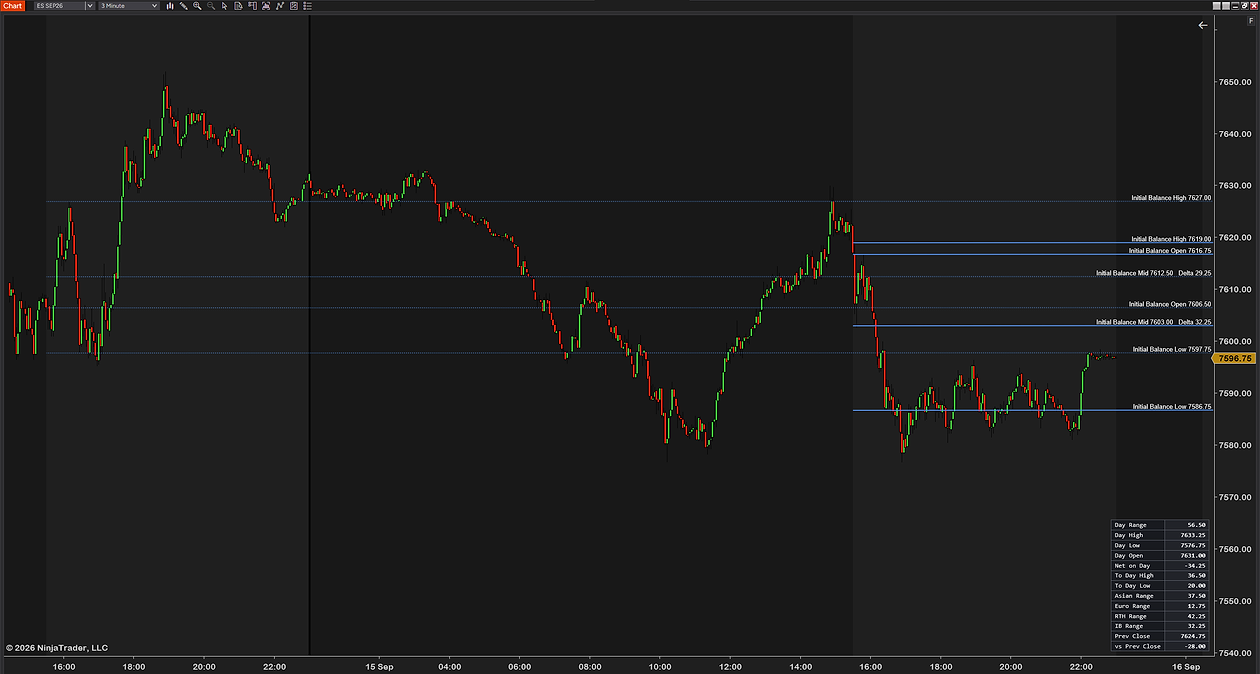
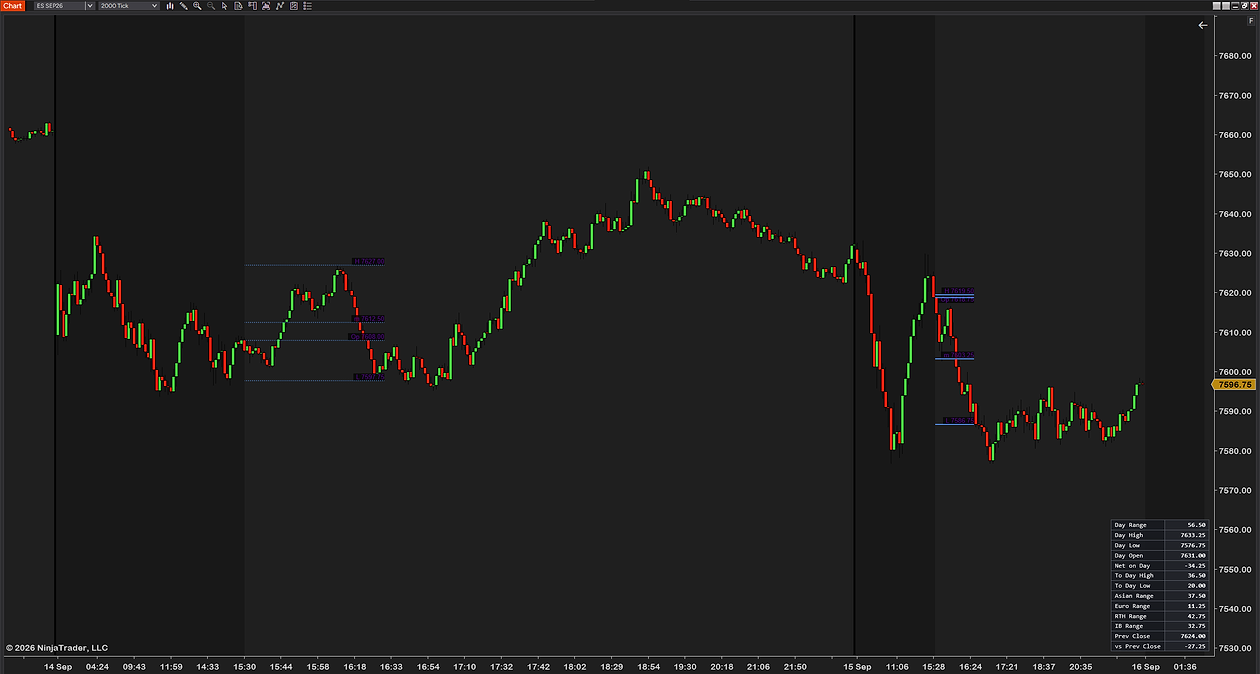
- Where the day starts. The first bar of the session is the first bar after the template’s begin time. On ETH that bar prints at 17:00 Central the previous evening; on RTH it prints at 8:30 Central. Anything that counts from the open — bar numbers, the initial balance, a session VWAP — counts from there.
- What “yesterday” means. A daily bar is one template session. On ETH the previous day’s high and low include the overnight; on RTH they do not. Two traders looking at “the prior day high” on the same instrument can be looking at two different prices, and both are right for their template. The key levels guide goes into this.
- Where the session break lines fall on the chart, and when session-based indicators reset.
- Which days are skipped. The holiday list is why a chart shows no bars on a day the calendar says was a Tuesday, and why an early-close day ends where it does.
The three time zones, and which one you are looking at
Three separate time zones are involved in every session question, and most confusion comes from treating them as one:
- The chart’s display zone. The time axis is drawn in the zone set under Tools → Options → General → Time zone. Out of the box it follows your computer’s clock, which is why a trader in Oslo sees the US open at 15:30 and a trader in New York sees 9:30 on identical data.
- The template’s zone. The CME templates are written in Central time. NinjaTrader converts their session times into the chart’s display zone before it draws anything, so an 8:30 Central open lands on the axis at 9:30 for an Eastern chart and at 15:30 for a Norwegian one. You never edit that conversion; it just happens.
- The zone an indicator defines its own times in. A tool that says “the US open is 9:30 Eastern” or “London opens at 8:00 GMT” is carrying a third zone of its own, and a well-built one converts it into chart time the same way NinjaTrader converts the template.
“What time zone does NinjaTrader use?” therefore has two answers. The chart uses whatever the Time zone option says, and by default that is your PC’s. The sessions underneath it use the template’s zone, which for US futures is Central. Data itself has no zone; it is timestamped once and displayed many ways.
How to change the chart time zone
- In the Control Center, open Tools → Options.
- On the General tab, find Time zone and pick the one you want — for example Eastern, so every chart reads in New York time regardless of where you sit.
- Click OK. Charts redraw in the new zone. No data changes, no template changes; only the numbers on the time axis move.
Two consequences worth knowing before you do it. Every chart and every time-of-day setting in the platform follows this one option, so the change is global. And any indicator that hard-codes a clock time in its own zone keeps doing so — if it says 9:30 and means Eastern, it still means Eastern after you switch the display to Central; it is the indicators that do not say which zone they mean that break.
Session break lines and Break at EOD
The vertical lines a chart draws at the start of each session are the template made visible. They are controlled from the chart’s Properties under Trading hours break lines, where you can change their colour and style or turn them off. If a chart shows a break line at an odd hour, that is the template talking: a line at 17:00 Central is ETH, at 8:30 Central is RTH.
The Data Series dialog also carries a switch NinjaTrader names Break at EOD. With it on, the end of the template’s trading day is treated as a break in the series — the point where session-based bar building and calculations end one day and begin the next. It is on by default and there is rarely a reason to touch it; it is listed here so the name means something when you see it.
Building a custom template
If none of the 118 fits — you want a day that starts at the cash open and ends at the cash close, say, or a session for a market NinjaTrader does not ship — the Trading Hours window under Tools is where templates are made. The practical route is to copy the closest existing template, give it a name, set its time zone, edit the session rows (begin day and time, end day and time, and which trading day each session belongs to), keep or trim the holiday list, and save. Then select it in Data Series on the charts that should use it.
Two things to get right. Write the sessions in the exchange’s zone, not yours, because the template’s zone is what everything is converted from. And if a chart ever reports “Unable to load trading hours from file”, the template file it names is damaged or missing — rebuild it under the same name and the charts that reference it come back.
Exit on session close
Automated strategies carry two settings that read the template directly: Exit on session close and Exit on session close seconds. Together they flatten the strategy’s position that many seconds before the template’s session ends. On an ETH template that means 16:00 Central; on RTH the same; on a custom cash-hours template it means the cash close. If a strategy is exiting at a time you did not expect, the template on its data series is the first thing to check, before the code.
Session tools, and why they do not care which template you use
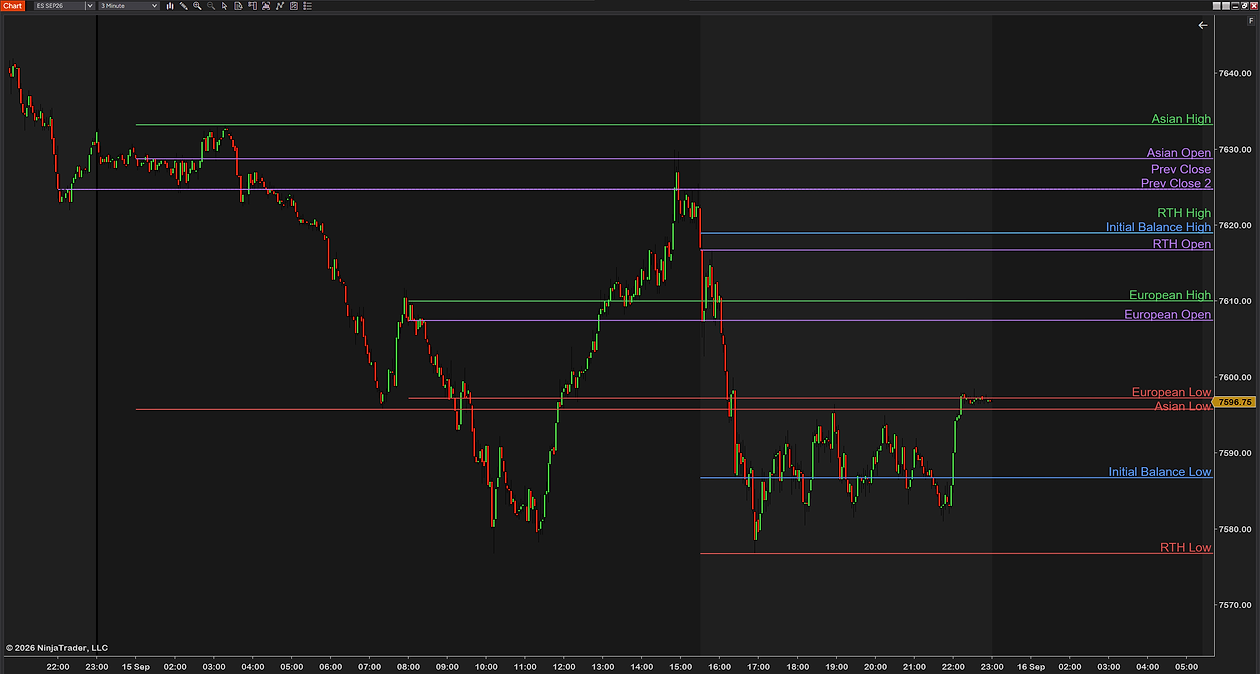
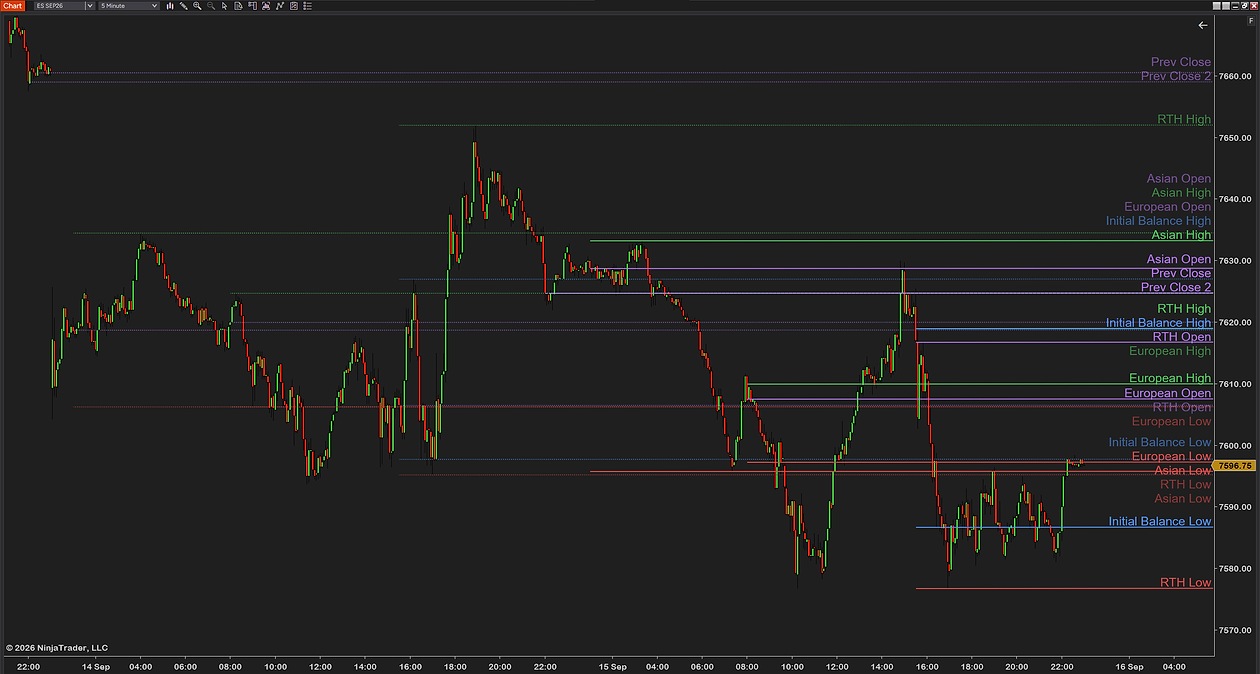
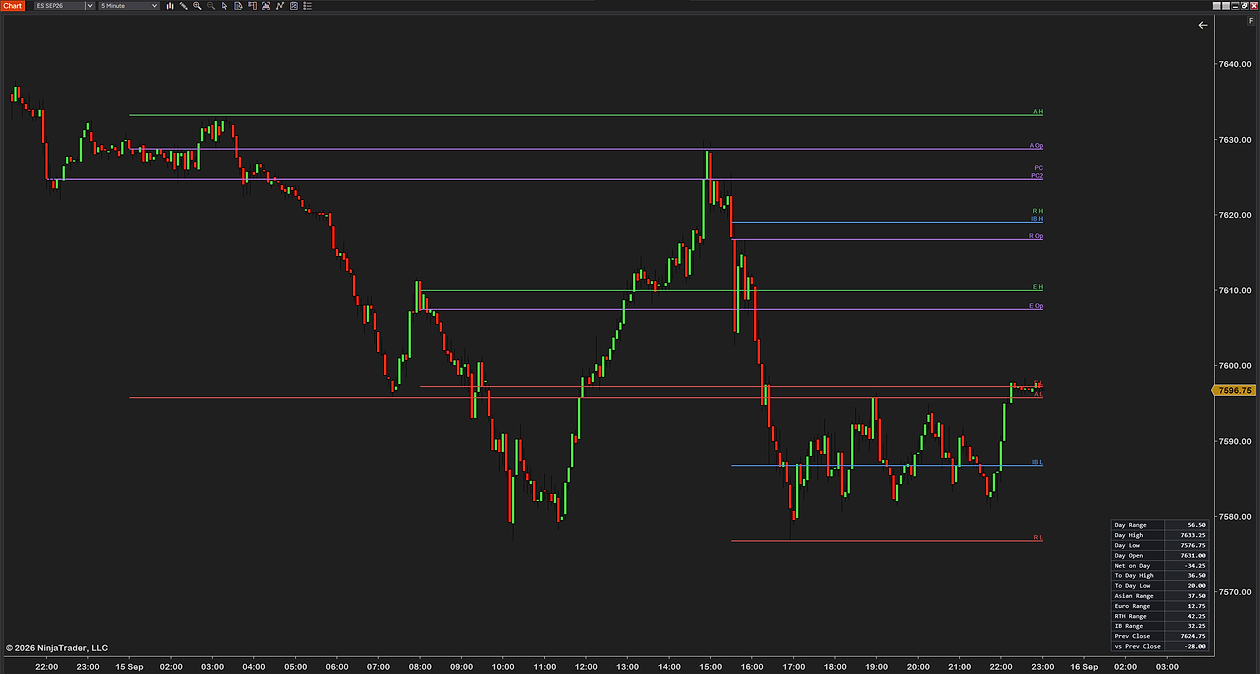
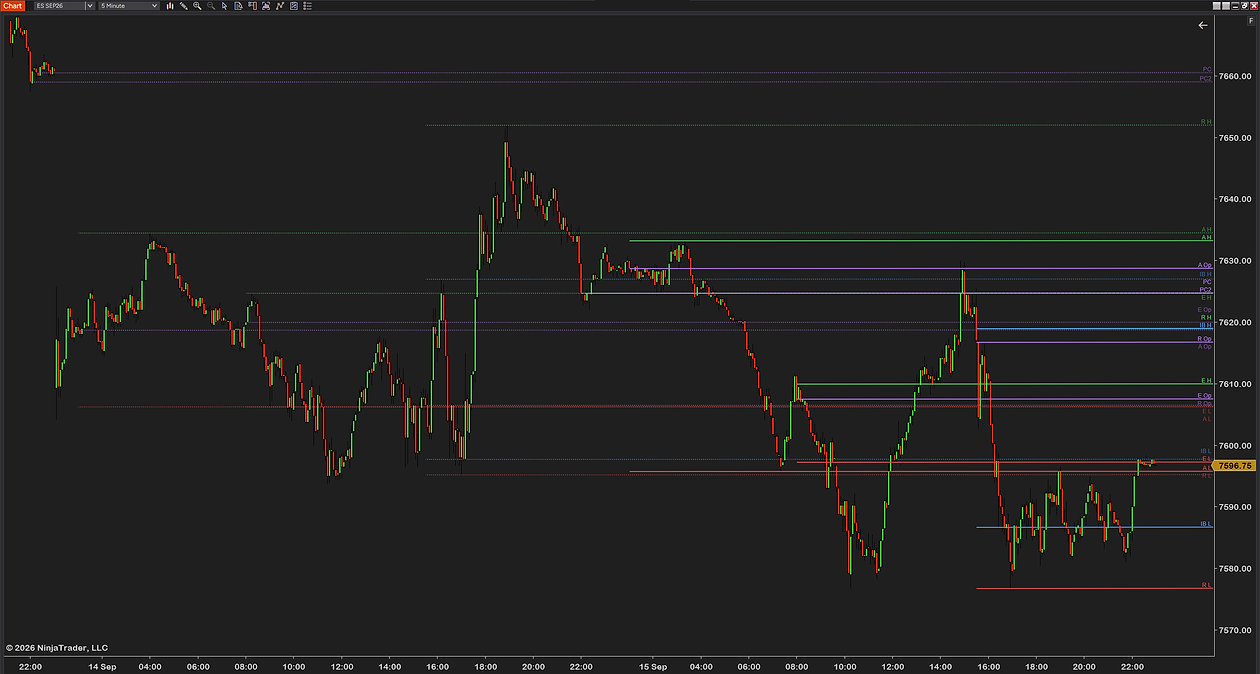
A session tool worth having defines its sessions in the exchange’s own zone and converts them into chart time itself, exactly as NinjaTrader converts the template. That is why a properly built one draws the same levels whether your chart is on ETH, RTH or a custom template, and whether it displays Eastern, Central or Oslo time.
- Our session levels indicator draws the open, high, low and median of the Asian, London and US RTH sessions and the initial balance, with the times defined in the zone you choose — Central European by default, or London, Eastern, Central, UTC, or the chart’s own time — plus your own custom sessions.
- The free initial balance indicator anchors its range to a named open — the US open at 9:30 Eastern, the US pre-market at 8:00, London at 8:00 GMT, Tokyo at 9:00 JST, Sydney at 10:00 AEST, or a custom time.
- The free bar counter indicator restarts its count at a named open for the same reason: daily, the US RTH open, the Globex open, London, Tokyo, Sydney, UTC midnight, or a custom hour.
What the template still decides, and no indicator can override, is the daily bar and the session break. If you want “yesterday’s high” to mean the cash session, the chart has to be on an RTH template; a level tool can draw the RTH session’s high for you, but the platform’s own daily bar will still be the template’s.
Three mistakes worth avoiding
- Reading the 9:30 bar as bar 1 on an ETH chart. On ETH the session began the evening before; the 9:30 bar is somewhere around bar 187 on a 5-minute chart. Count from the open you mean, with a tool that knows which open that is.
- Assuming the template is in your time zone. The CME templates are Central. A custom template written in your local time on a machine set to another zone will start every session hours off, and the chart will faithfully draw it wrong.
- Comparing levels across templates without saying so. “Prior day high” on ETH includes the night; on RTH it does not. When two charts disagree, check Data Series → Trading hours on both before you check anything else.
Common questions
What time zone does NinjaTrader use?
Two answers. Charts display in the zone set under Tools, Options, General, Time zone, which follows your computer's clock until you change it. Underneath, each trading hours template carries its own zone, Central for the CME templates, and NinjaTrader converts session times from the template's zone into the chart's before drawing them.
What is the difference between RTH and ETH in NinjaTrader 8?
They are two shipped templates for US index futures, both written in Central time. ETH runs 17:00 to 16:00 the next day, five sessions a week that each span midnight, with the trading day on the end day. RTH runs Monday to Friday 8:30 to 16:00 Central, which is 9:30 to 17:00 Eastern. ETH includes the overnight; RTH does not.
Which trading hours template is my chart using?
Right-click the chart, open Data Series and read the Trading hours field. If it says Use instrument settings, the chart is on the template NinjaTrader assigned to the instrument, and for ES, MES, NQ, MNQ, YM and MYM that is CME US Index Futures ETH. Pick another template there to change this chart, or edit the instrument under Tools, Instruments to change the default.
How do I change the time zone in NinjaTrader 8?
Tools, Options, General, Time zone. Pick the zone and click OK; every chart redraws its time axis in that zone. No data or template changes. Indicators that define their own times in a named zone keep meaning that zone.
Why does my previous day high differ from someone else's chart?
Because a daily bar is one template session. On an ETH template the previous day includes the overnight session, so its high and low can sit outside the cash-hours range; on an RTH template they cannot. Compare Data Series, Trading hours on both charts before comparing prices.
How do I make a custom trading hours template?
Open Tools, Trading Hours, copy the closest shipped template, name it, set its time zone to the exchange's zone, edit the session rows and the holiday list, and save. Then select it under Data Series, Trading hours on the charts that should use it. If a chart later reports that it is unable to load trading hours from a file, rebuild the template under the same name.
What does Exit on session close do in a strategy?
Together with Exit on session close seconds it flattens an automated strategy's position that many seconds before the trading hours template's session ends. On the CME index templates that is 16:00 Central; on a custom cash-hours template it is whatever end time you wrote. An unexpected exit time usually means an unexpected template.
Related guides
- What is the initial balance? — the first hour after an open, which only means something once you know which open.
- What is bar counting? — numbering bars from the session start, and why the template moves bar 1.
- Previous day high, low and the session opens — the levels whose meaning changes with the template.
The honest part
There is no correct template, only a correct one for the question you are asking. ETH is right for anyone who trades or measures the overnight; RTH is right for anyone whose day begins at the cash open. The mistake is not picking one, it is not knowing which one you are on — and for most index-futures charts the answer is ETH, because NinjaTrader chose it for you. Check the field once, and every level on your chart will make more sense.